

Redmine Kanban
Description
Redmine Kanban is a plugin for organizing the work of teams on flexible Kanban methodologies directly in Redmine. The plugin is ideal for development teams who want to implement agile approaches without abandoning the familiar Redmine ecosystem.
Key features
New modules in the project
- Kanban (Boards) — the main agile board
- "Backlog" — a board with columns for any parameter (version, sprint, assigned, author, project, etc.)
- "Sprints" — a page for managing sprints
- "Operational plan"
New issue properties
- "Block" — a system of block with types and reason
- "Story Points" — assessment of the difficulty of issues
- "Issue Size" is a custom metric for classifying issues
- "Sprints" — linking issues to specific iterations
Adding new filters and columns on the issue page and on the kanban board
Additional features
- Quick Issue View — When grouping issues by parent or top-level, the issue opens in a modal window. (requires the queries_perfect plugin)
Compatibility
Redmine: 5.1 - 7.0
Web Browsers: Chrome, Firefox, Safari, Edge
Databases: MySQL 5.7, MySQL 8.0, PostgreSQL 14-16, SQLite
Plugins: redmine_kanban, redmine_advanced_checklists, advanced_charts, appearance_custom, module_manager, periodic_reminder, user_group_editor, queries_perfect, selectbox_autocompiler, cost_calculator.
Installation and Update
-
Remove the old version of the plugin from Redmine, if it exists.
cd redmine/plugins rm -r redmine_kanban -
Copy the new redmine_kanban plugin folder to redmine/plugins/
-
Run the migrations in the Redmine root folder
bundle exec rake redmine:plugins:migrate RAILS_ENV=production NAME=redmine_kanban -
Stop and start redmine. (In some Redmine installations (for example, in Docker), it is important to stop and start the server, rather than restart it.)
Deletion
- Run the delete command in the Redmine root folder
bundle exec rake redmine:plugins:migrate RAILS_ENV=production NAME=redmine_kanban VERSION=0
- Delete the redmine_kanban plugin folder from redmine/plugins/
rm -r redmine_kanban
- Stop and start redmine.
Setting up
- Configure user roles in Administration -> Roles and Access Rights.
- Configure the trackers in Administration -> Trackers.
- Enable the Kanban, Backlog, and Sprints modules for projects in each project's settings.
- Check and change other plugin settings in Administration -> Modules -> Kanban Board or Administration → Kanban.
Administration
Section "Modules"
There are two ways to access the plugin parameters:
- Administration → Modules → Kanban Board
- Administration → Kanban
The "Kanban" tab
In this section, you can configure the display of plug-in elements in the Redmine interface and define the main parameters for working with whiteboards.
Settings:
- Show in the top menu — Adds the Kanban tab to the main top menu of Redmine.
- Show in the application menu — Adds the Kanban tab to the application menu for quick access.
- Show the "backlog" in the application menu — Adds the "backlog" tab to the application menu for quick access.
- Allow you to create a issue on the board — Provides the ability to create new issues directly from the Kanban board, without going to other sections of Redmine.
- Show "sprints" in the menu of all projects — Adds the "Sprints" tab to the application menu (on the "Projects" page)
- Show "Operational plan" in the menu of all projects — Activates the display of the "Operational Plan" tab in the application menu (on the "Projects" page)
- Story Points — If you leave the field If it is empty, the Story Points field will not be displayed when creating and editing issues.
- Default Board — The default board in any project (can be redefined in the settings of each project or in the settings of each user)
- Number of issues uploaded for each status - Limits the number of simultaneously displayed issues for each column of the board.
Issue Size tab
In this section, you can adjust the issue sizes to assess the complexity of the issues.
Create your own values for evaluating issues
Example: Easy, Medium, Difficult or S, M, L, XL
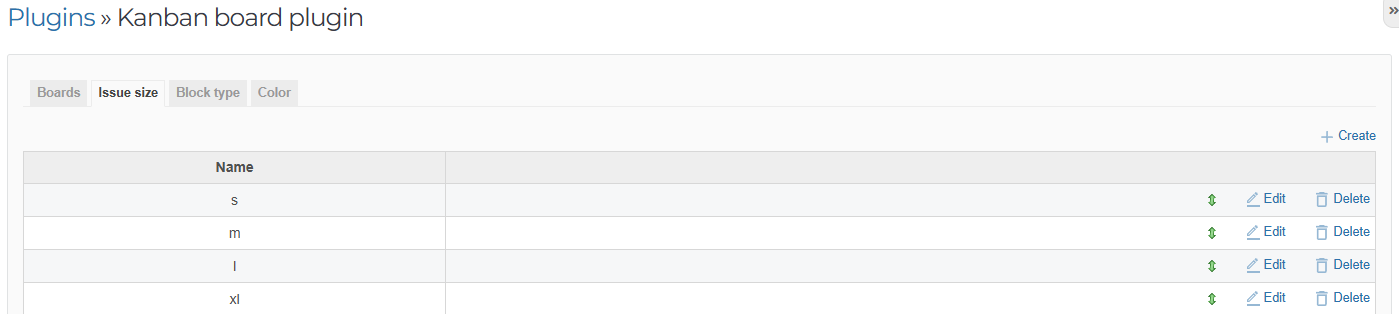
- When creating or editing a issue, you can select the desired value from the drop-down list.
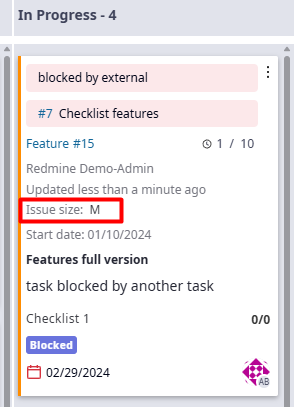
- You can display this value in a card on the board.
- You will be able to group or filter issues based on "Issue Size"
The "Block type" tab
In this section, you can configure the types of block that prevent issues from being completed.
Create your own block types
Example: Waiting for a response, Technical problem, Dependency, Requires approval
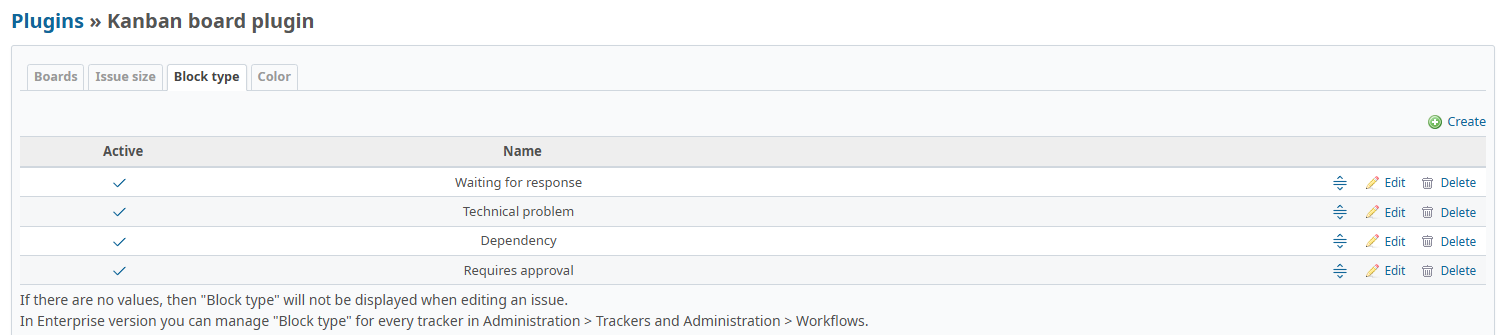
- When editing a issue card on the Kanban board or in the issue section, you can select one or more types of block.
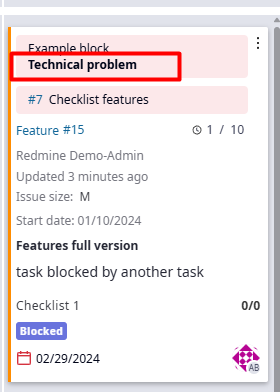
- Blocked issues are visually highlighted on the Kanban board.
The "Color" tab
Customize the visual display of issues on the Kanban board using color coding. You can use both standard color schemes and create a fully customized palette.
Color adjustment
- Selecting a field to color - Select the field from the list for which you want to customize the color display
- Setting the color values - Assign the appropriate color for each value of the selected field
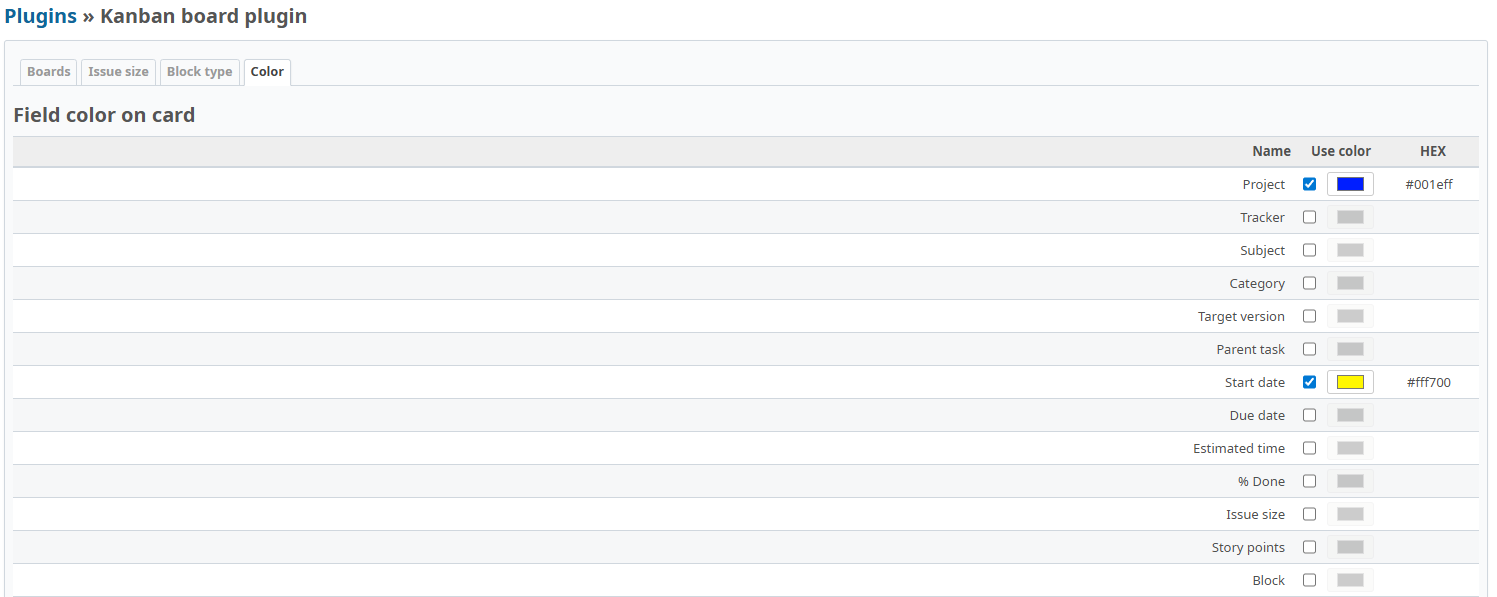
- Using standard colors - the system will offer ready-made color schemes for popular fields
- Color customization - you can customize individual colors for each field value
Example: for the Start Date field → Blue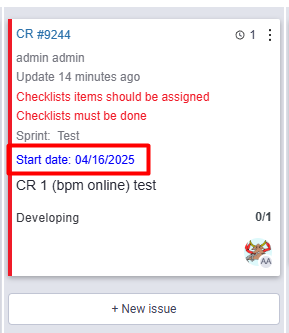
Section "Trackers"
New items of standard fields are added in the tracker settings.:
- Block
- Issue size
- Story Points
- Sprint
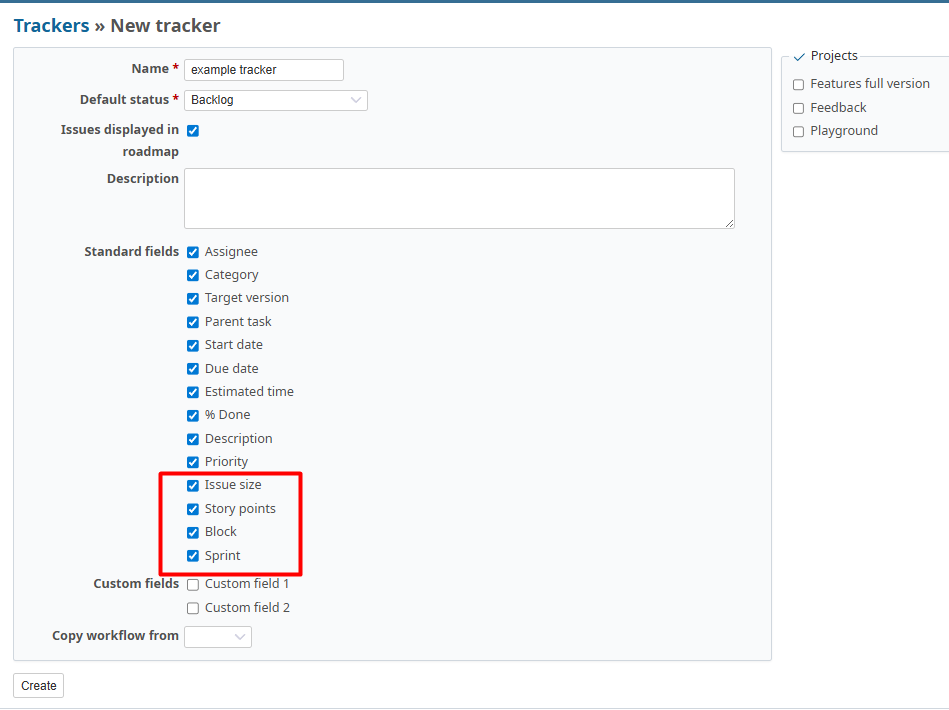
Section "Roles and access rights"
The plugin adds a system of detailed access rights for working with Kanban boards, Backlog, and Sprints.
The rights are configured in the section Administration → Roles and access rights for each role individually.
Rights for the Agile boards module (Kanban boards)
- View — view Kanban boards
- Board Editing — edit your own boards
- Editing public boards — editing public boards
- Sorting issues on the board — changing the order of issues on the board
Permissions for the Backlog module
- View — view the Backlog
- Whiteboard Editing — edit your own Backlog views
- Editing Public Whiteboards — editing publicly available Backlog views
Rights for the Sprints module
- Edit Sprints — Manage sprints (create, edit, delete)

Project Setup
Project
In the Modules section, you can enable and disable the following components:
- Kanban
- Backlog
- Sprints
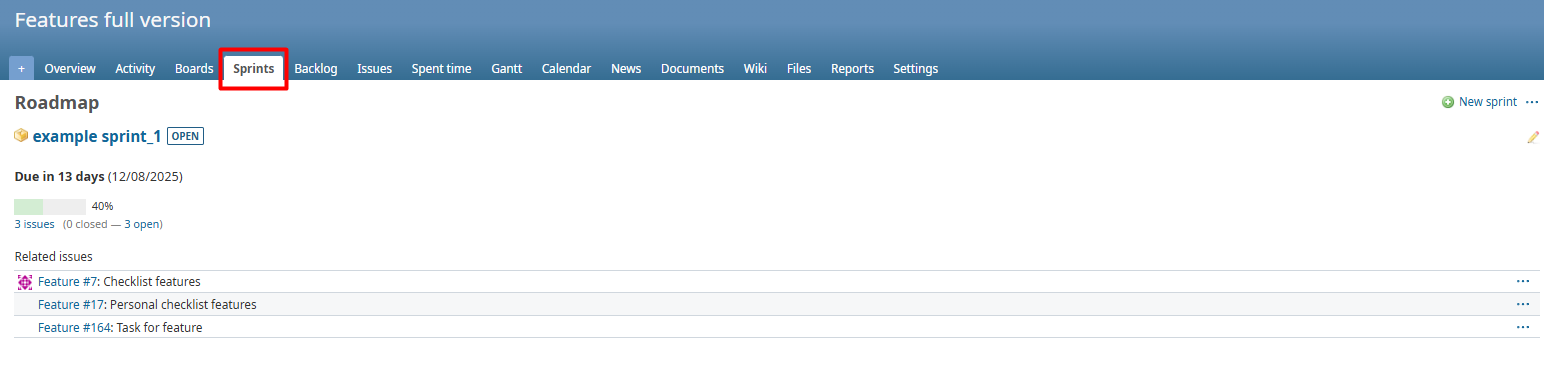
Sprints
Sprints can be managed in Project → Settings → Sprints.
The following actions are available in this section:
- Create new sprints.
- View the list of sprints and details of each sprint.
- Editing sprint parameters (dates, descriptions, etc.).
- Deleting sprints.
- Filtering sprints by status.

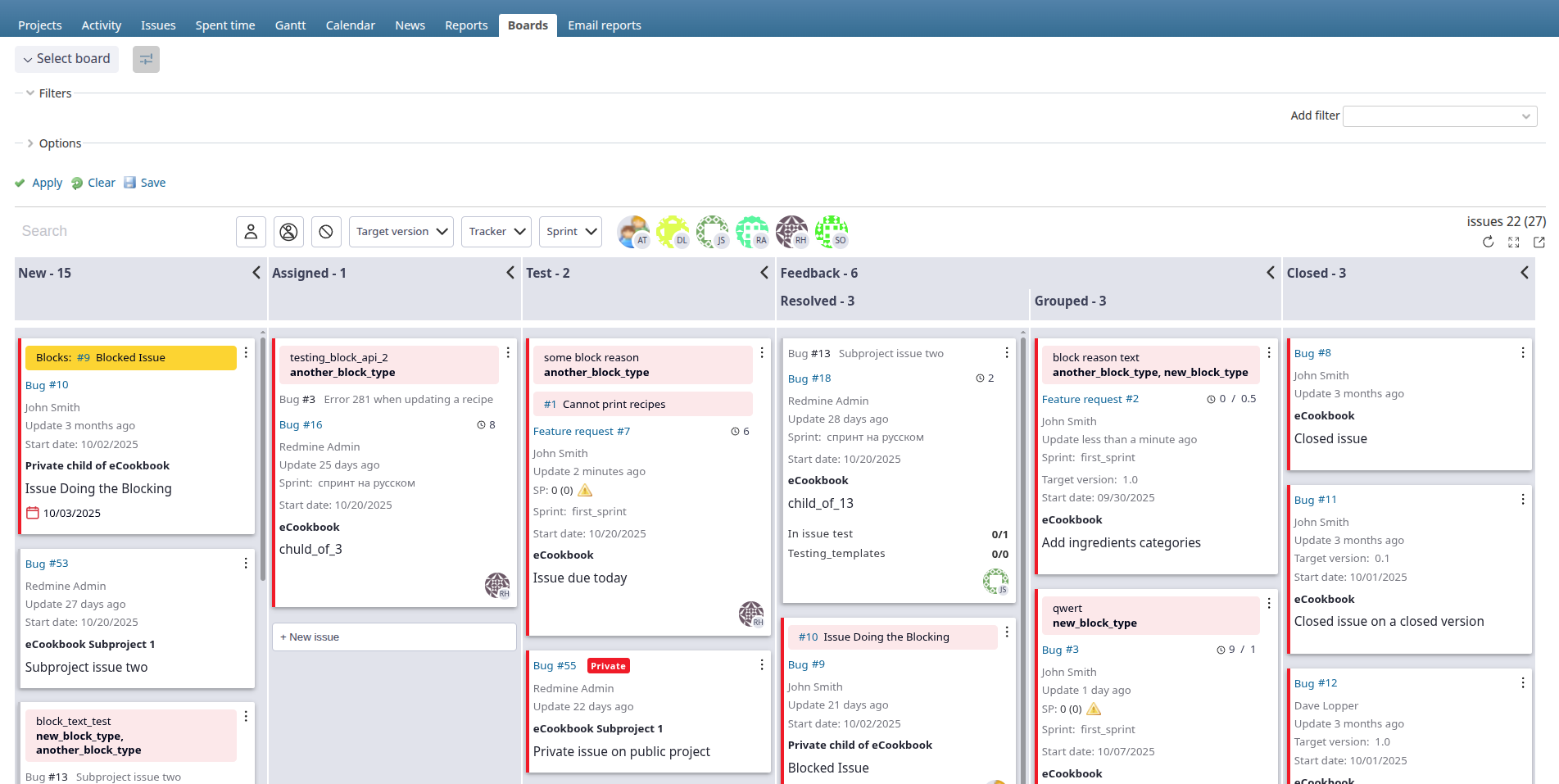
Kanban board
Board Features
- Configuring the issue card — managing the set of fields that are displayed on the card.
- Dragging issues between columns — intuitive movement of cards with visual hints about acceptable transitions (taking into account the settings "Sequence of transitions")
- The modal Issue window allows you to quickly view and edit information about a issue without reloading the page.
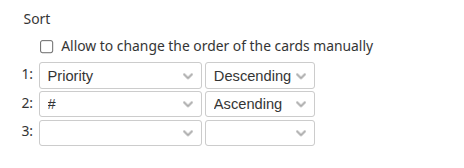
- Card sorting — the ability to sort cards by three selected criteria and manually sort
- Filters — basic board filters, quick filters
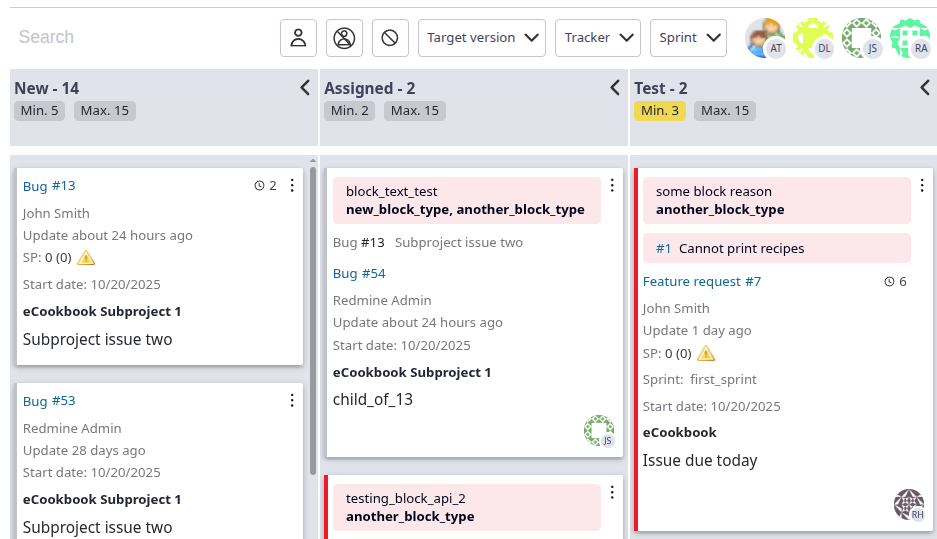
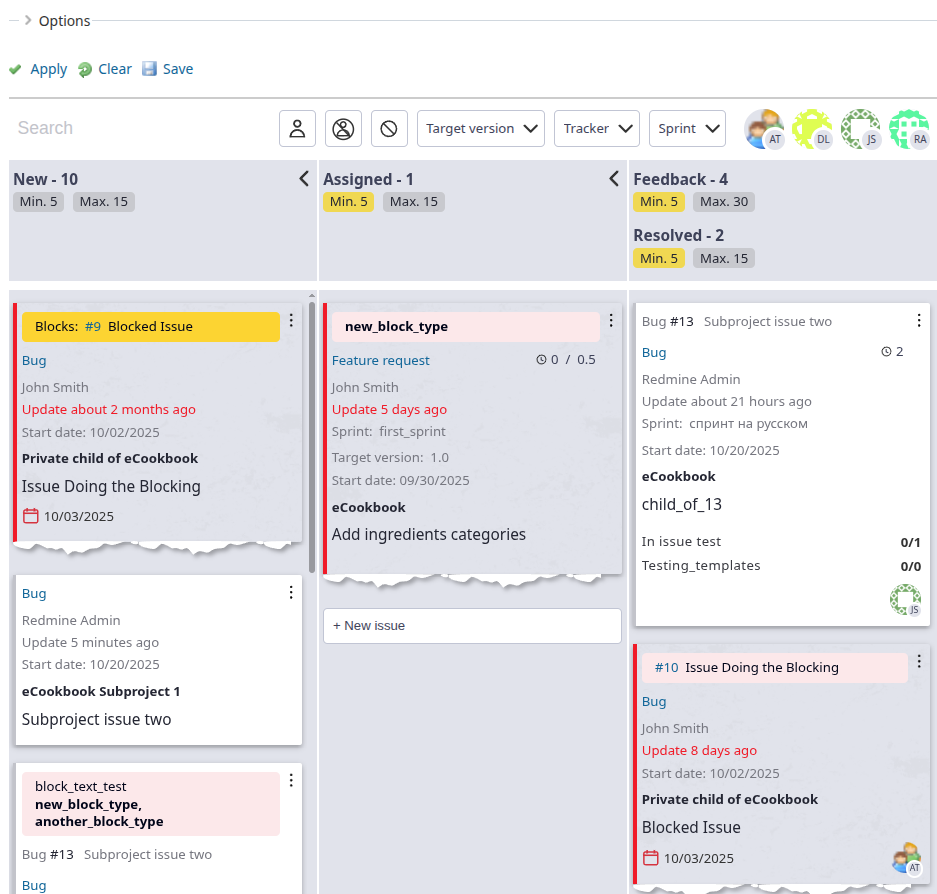
- WIP limits and Age of the card — the minimum and maximum number of issues displayed in the column. The age of the card.
- The Old Paper Effect is a visual highlighting of issues that have not been updated for a long time.
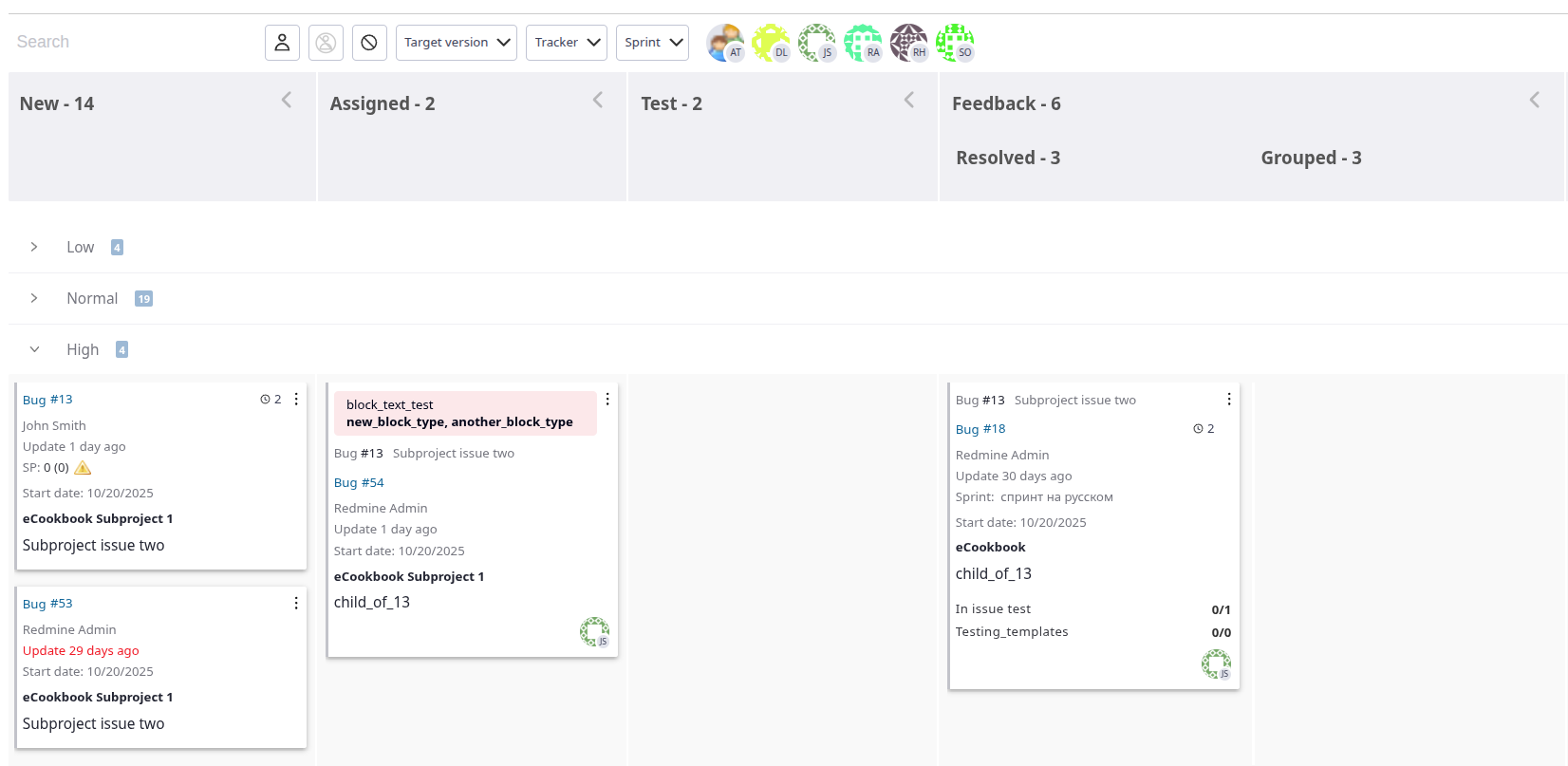
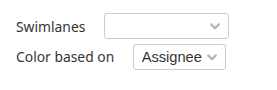
- Swimming lanes (Swimlanes) — grouping cards into horizontal lanes according to the selected criterion.
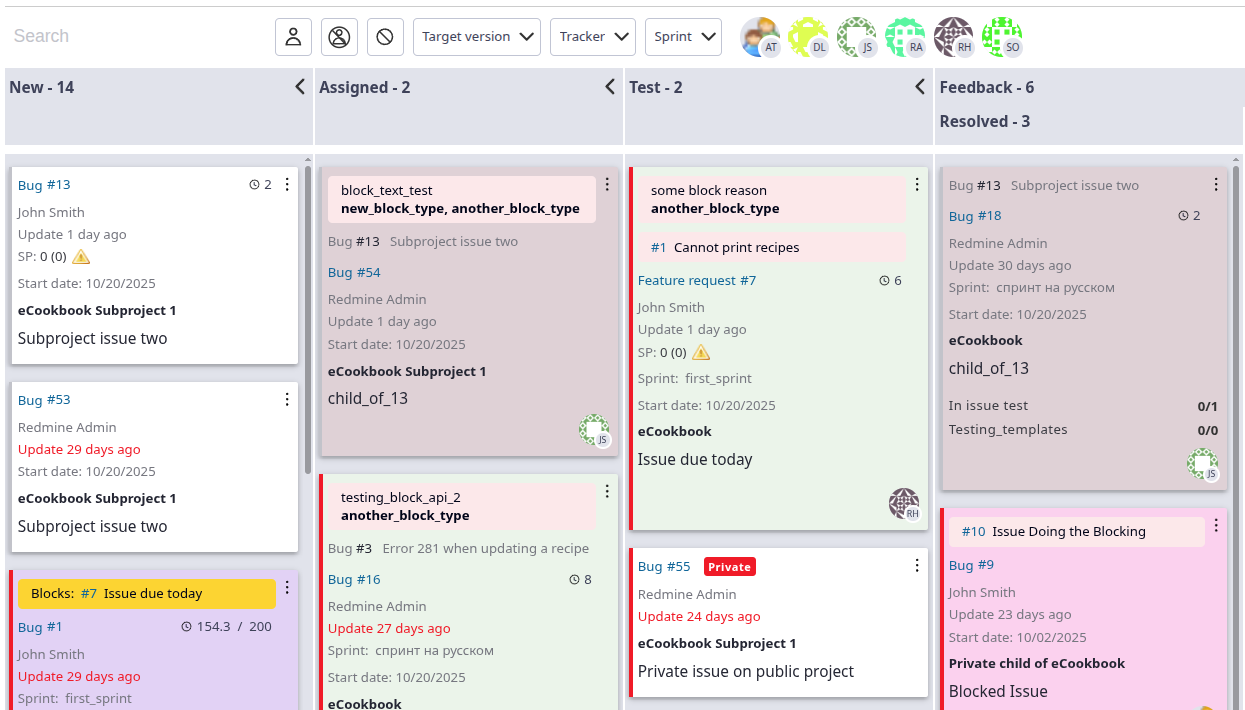
- Color based on — sets the color coding of the cards based on the selected attribute.
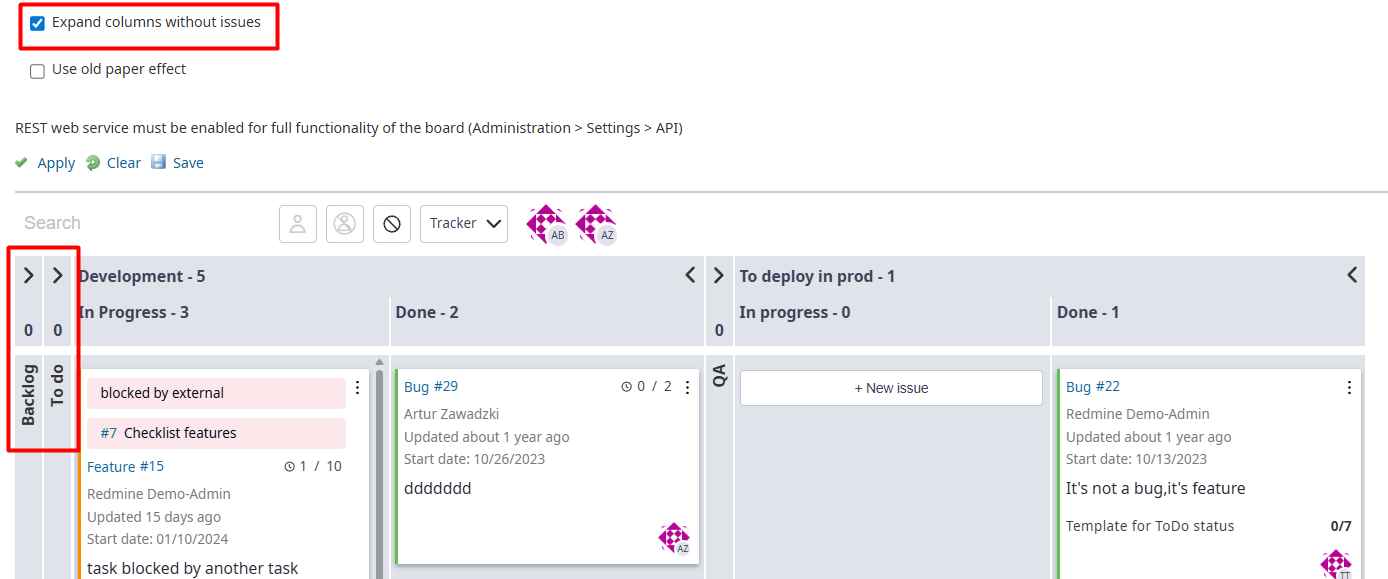
- Expand columns without issues — displays empty columns with no issues on the board
- Save the board — the ability to save the current state of the board with active filters and settings.
- Customizable columns — create columns with their own name and link to the selected issue status.
- Sub—columns - the plugin supports the creation of sub-columns
- Board control — There are buttons to control the display to the right of the board.
- Create a issue on the board — Create a new issue directly from the board.
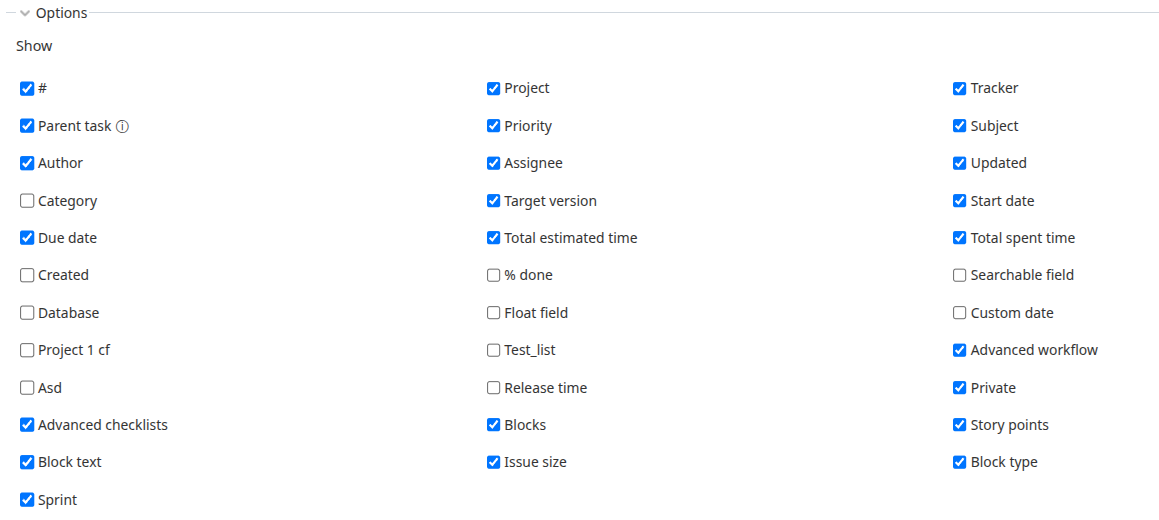
Configuring the issue card
In the "Show" section, a set of fields is set that are displayed on the issue cards.
All the main issue fields are available, including customizable ones.
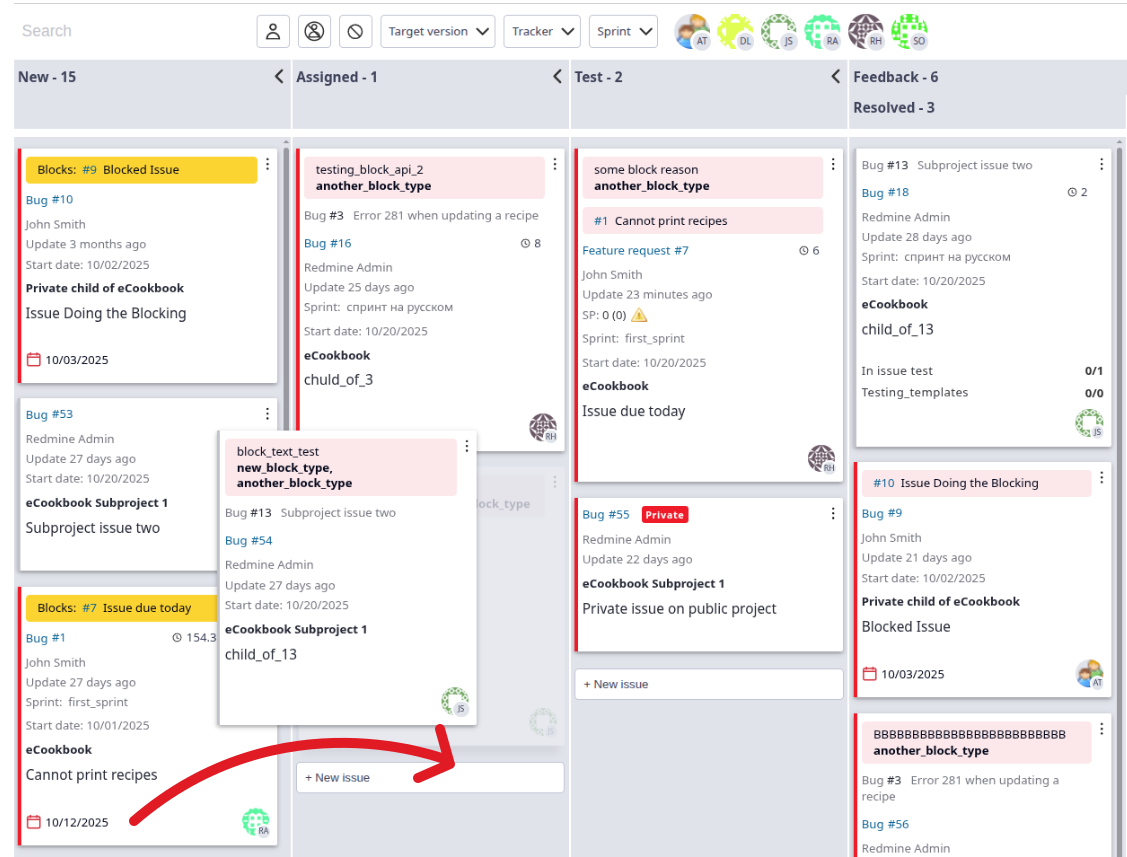
Dragging issues between columns
Dragging issues between the columns is available to all users. The issue will be moved to another column only if editing of the issue is allowed and the status of a new column for this issue is allowed.
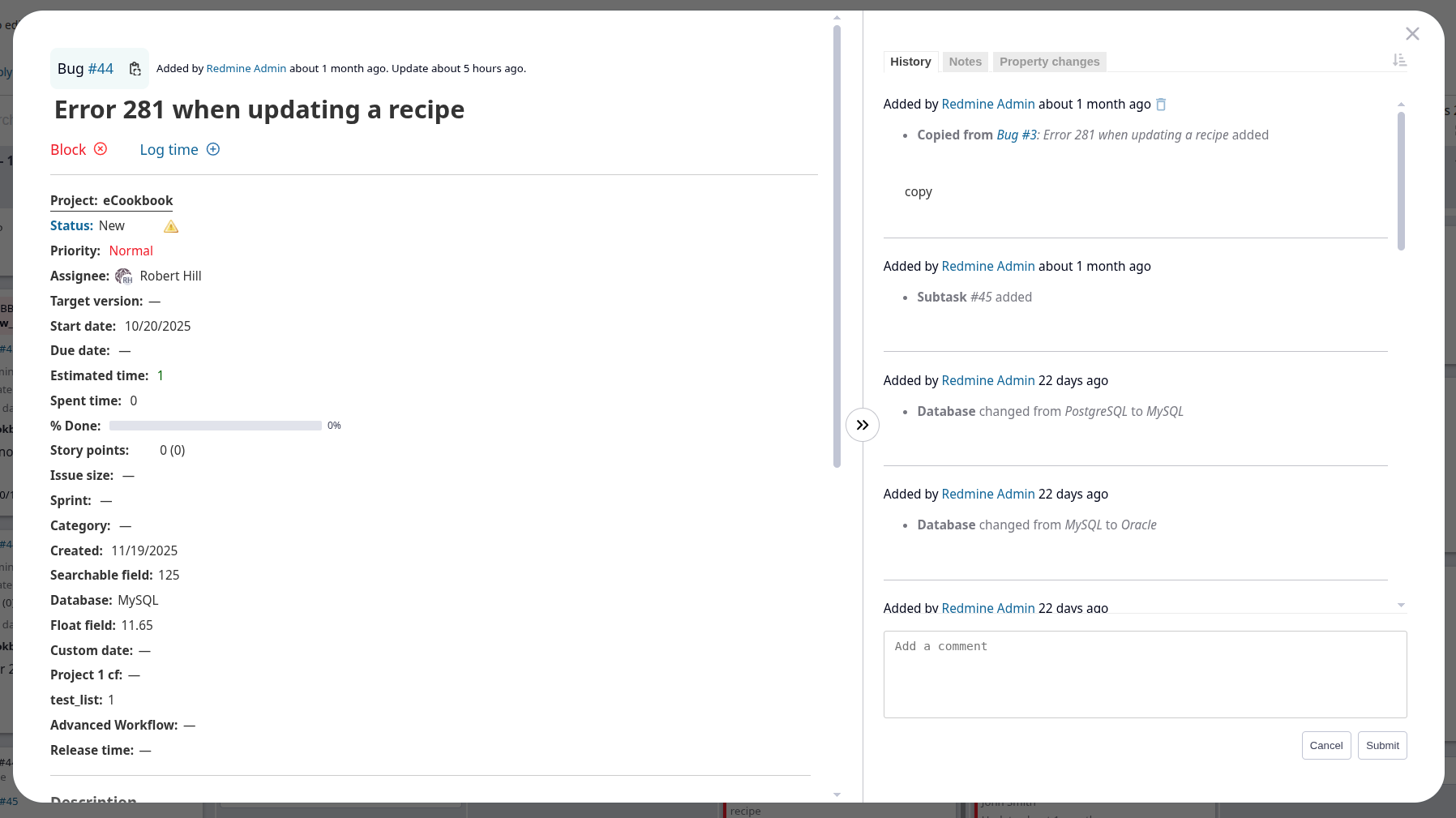
The modal issue window
Clicking on a card on the board opens a modal window designed for quick viewing and editing of issues.
The modal window contains the following:
- Editable data:
- All issue fields, including customizable ones, except "Project", "Tracker" and "Parent issue"
- Labor costs
- Blockages (Type and Reason)
- Issue History
- Notes
- Property changes
- Checklists (requires the redmine_advanced_checklists plugin)
- Data for viewing only:
- Project
- Tracker
- Parent issue
- Files
- Observers
- Subtasks
- Related issues
In the notes, you can:
- Mention the user — enter the
@character first, then the username, or select the desired participant from the drop-down list. - Insert images — just copy the desired image and paste it into the notes field using Ctrl+V (on macOS — Cmd+V).
Card sorting
Card sorting criteria
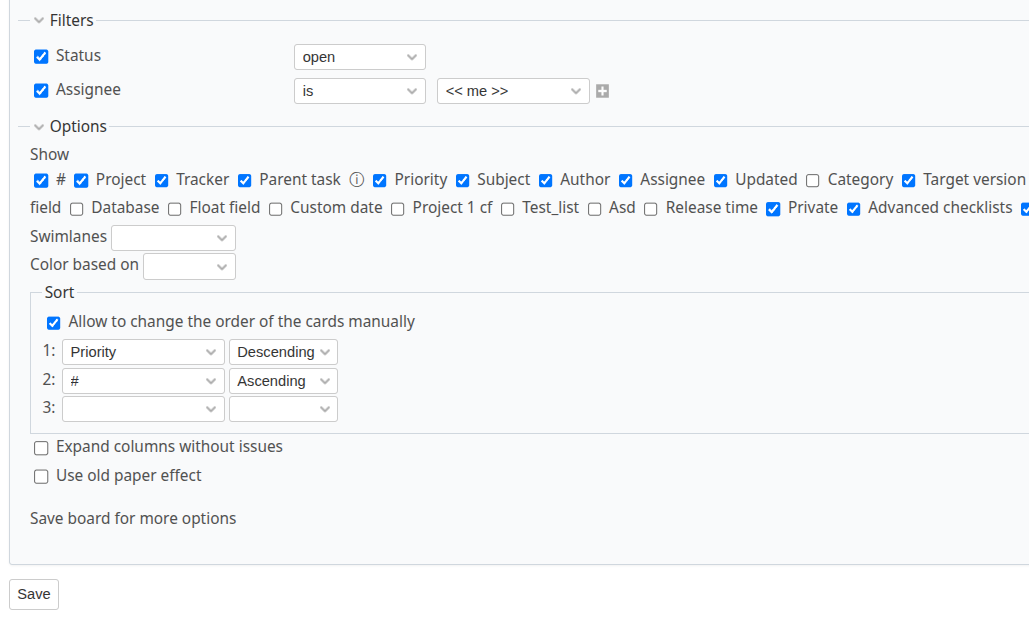
Sorting is available by the main issue fields, including custom fields. The changes take effect after applying or saving the board configuration.
Example:
- First Priority: Sort by "Priority" field in descending order — more important issues first.
- Second priority: If the priorities are equal, sort by issue number (ID) in ascending order.
Manual sorting
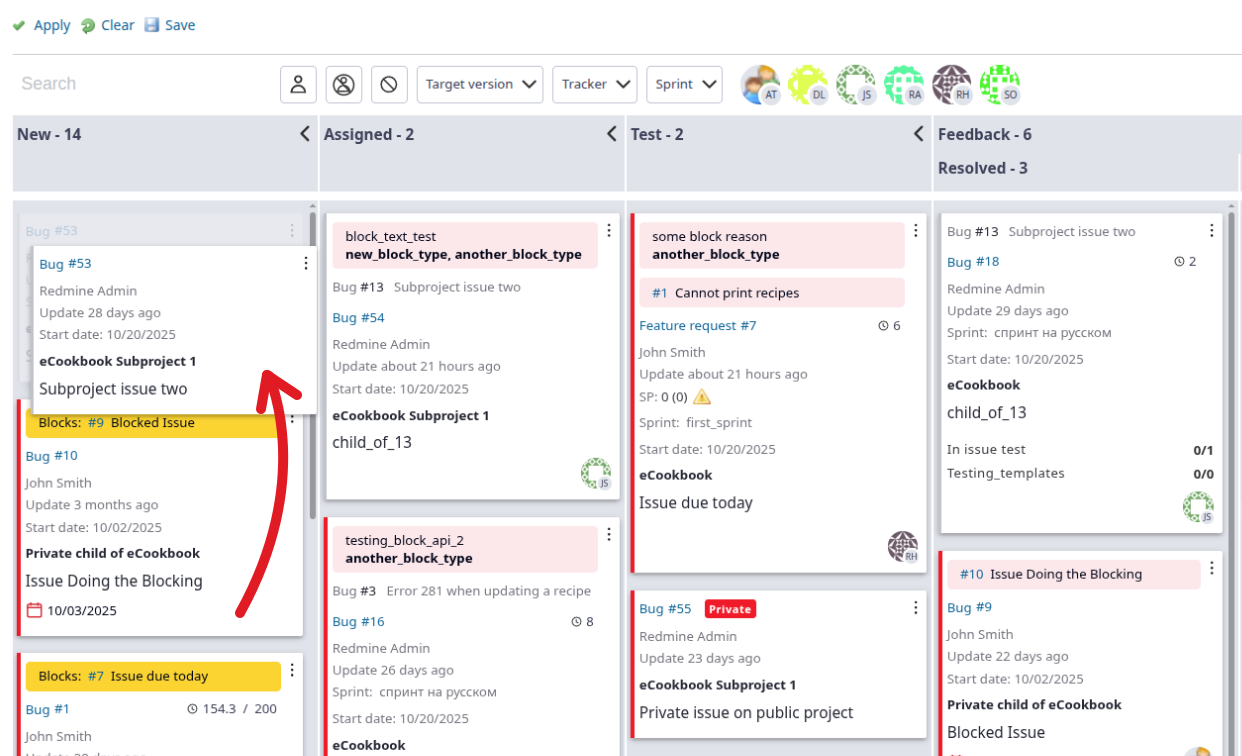
To enable manual sorting, select the checkbox "Allow sorting by dragging on the board" in the board options and click Apply / Save. After that, you will be able to change the order of issues in the columns. Drag the cards up or down inside the column to set the desired sequence.
Board Filters
Basic Filters
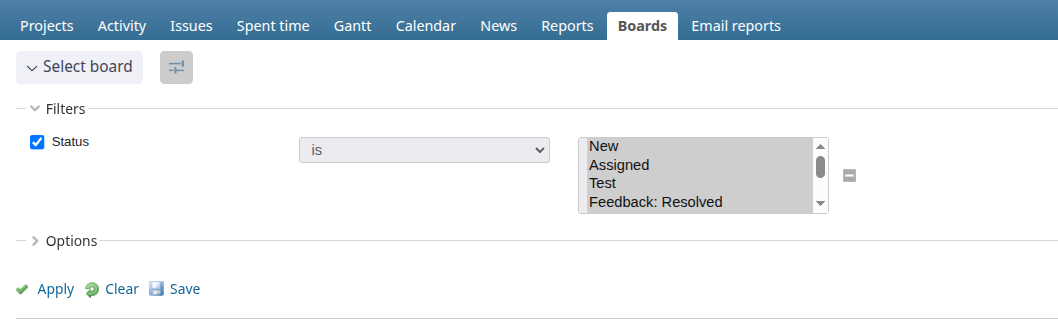
To filter the cards on the board, the same criteria are used that are available on the Issues page.
The plugin adds the following filters:
- Sprint
- Story Points
- Issue size
- Reason for block
- Type of block
- Upper-level block
- Block subtasks
Quick Filters
Quick filters are applied on top of the main board filters and affect only the issues loaded on the current board.
The following filters are available:
- Board search
- By issue number — enter the numbers to search by issue ID
- By issue topic — enter the text to search by issue name
- Issues assigned to me or groups that I belong to
- Issues that do not have a performer
- Blocked issues — issues with active block
- Version — filtering by project versions
- Tracker — selection by issue type
- Sprint — filtering by iteration of development
- Issues assigned to a user or a group — selection by specific performers or groups
Filters are applied instantly, can be combined, and can be easily reset with a single click.

WIP limits and Age of the card
WIP limits
WIP (Work In Progress) is the reference metric shown in the column header.
The parameter is configured in the board options.
Allows you to set the minimum and maximum number of issues in a column.

Card age
The parameter is configured in the board options.
If the age of the card exceeds the specified threshold, the value of the field "Updated" is highlighted in red.

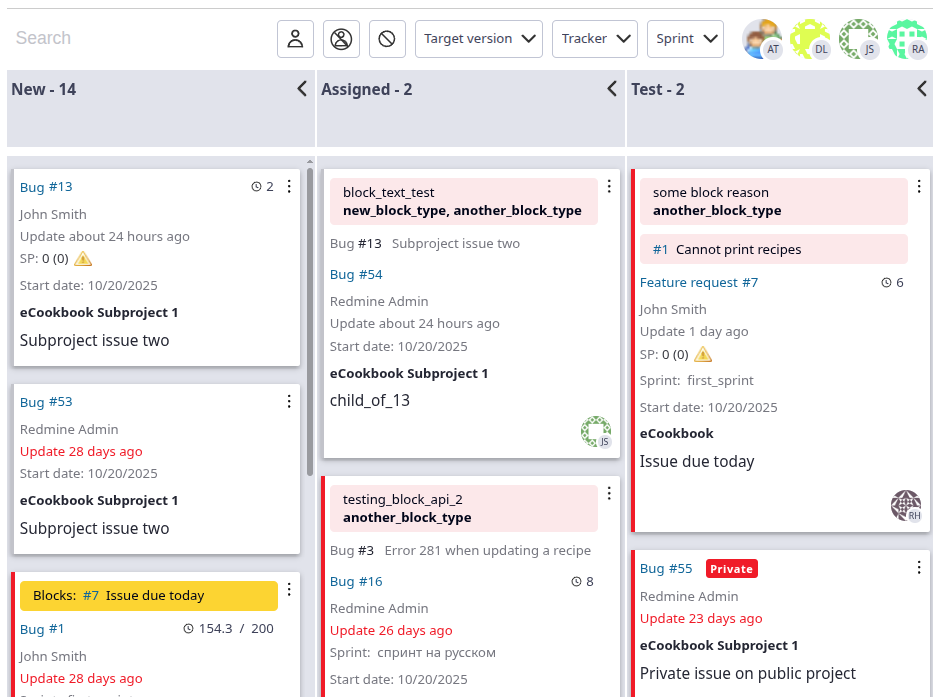
The effect of obsolescence (Old Paper Effect)
The effect visually highlights outdated issues by applying an "old paper" style design.
The option is enabled in the board settings. For the effect to work, you must specify the value of the parameter "Card age".
The effect is applied if at least one of the conditions is met:
- The issue is overdue by the specified number of days (card age);
- The issue has not been edited for the specified number of days (card age).
Swimming lanes (Swimlanes)
Groups the issues on the board into horizontal sections according to the selected parameter. You can group the board according to the following parameters:
- The project
- Tracker
- Parent issue
- Priority
- The author
- Assigned
- Category
- Version
- Issue size
- Sprints
- Top-level issue (requires the queries_perfect plugin)
- Customizable fields
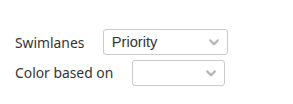
Color based
Sets the color coding of the cards based on the selected attribute:
- Assigned
- The author
- Category
- The project
- Tracker
- Version
Expand columns without issues
When the option is enabled, empty columns with no issues are displayed on the board.
By default, the empty columns are hidden for a more compact and convenient display of the board.

Saving the board
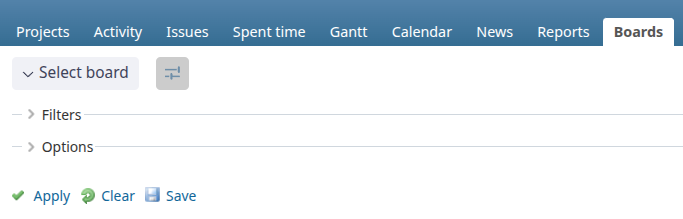
The Kanban board can be saved as a query, either as a issue request or a labor request. Click "Save" to open the save page, where you can set the name, board visibility, and board parameters. The saved query can then be edited and saved again.
Board visibility
This setting determines the context of using the saved board — in which project (or projects) it will be available.
Without the option "Can be used in any project"
- The board is linked to the context in which it was created: to a specific project or to the "All Projects" section.
- When selecting such a board, the system automatically switches to its context.
- Usage: inside the source project or in the "All Projects" mode.
With the option "Can be used in any project"
- The board is available in any project, as well as when viewing "All Projects".
- When the board is selected, the current project context is saved.
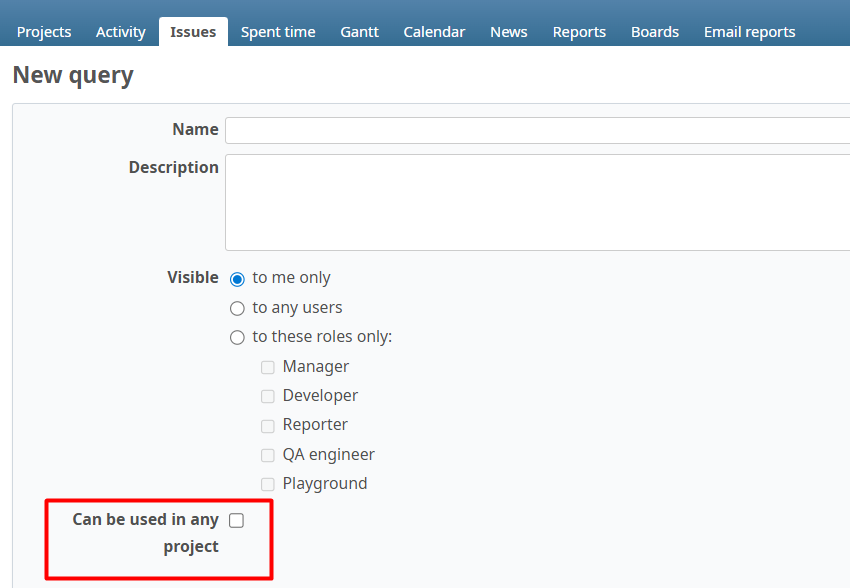
Board Parameters
This section sets up the basic parameters of the board. To access all available options, first save the board, then open it in edit mode.
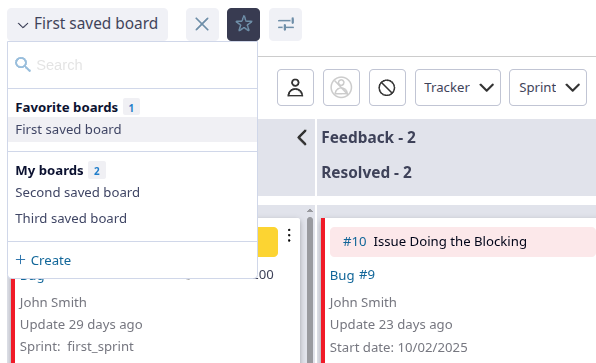
Favorite boards
All saved boards are available in a drop-down selection list.
For easier navigation, the board can be added to favorites by clicking on the star.
Editing the board
To edit the board, open its options by clicking the settings button and select "Edit".
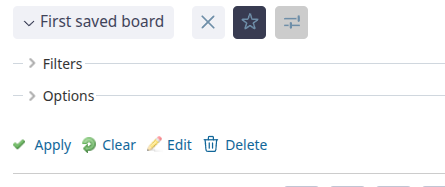
An edit page for the current board opens with an expanded set of options, including column display settings, which include the following options:
- Status—based columns - are used by default for all boards.
- Custom columns — columns configured by the user (for more information, see Custom columns).

Customizable speakers
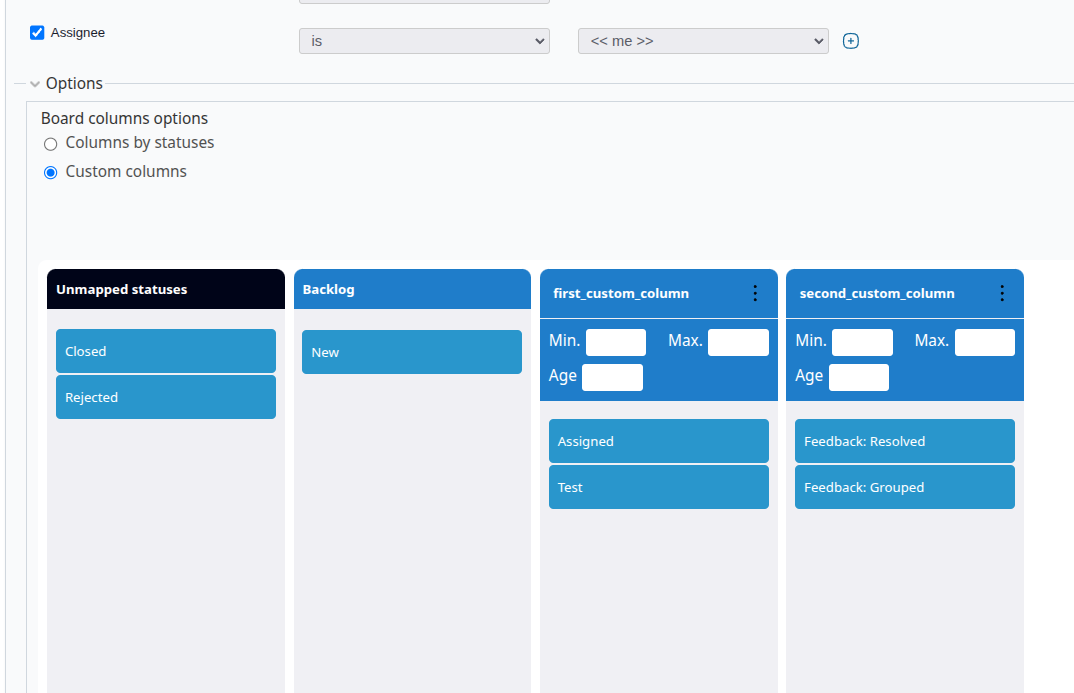
Customizable columns allow you to combine multiple statuses into one column on the kanban board.
Creation and configuration
- Custom speakers are configured on the edit page of the already saved board.
- Create new columns by specifying the name and, if necessary, setting the WIP limits and age of the card.
- Drag the desired statuses to the created columns.
 It is also possible to create and customize sub-columns.
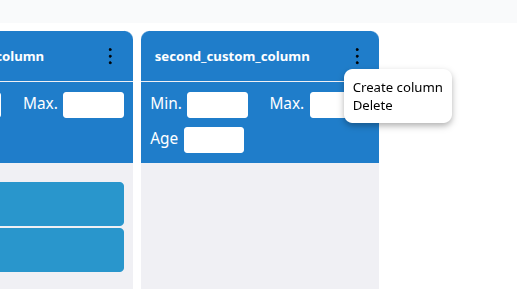
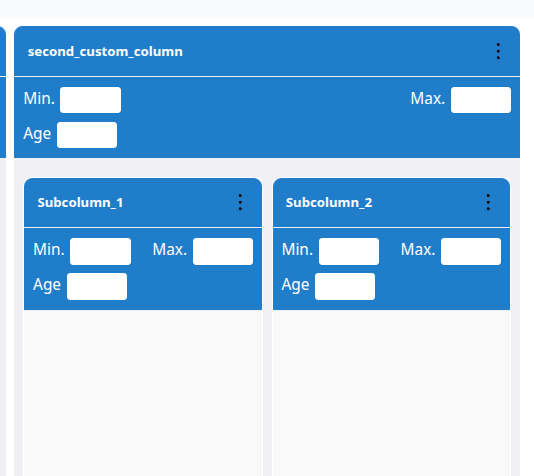
To create a sub-column, click on the three dots icon in the upper-right corner of the column and select "Create a sub-column". Then specify its name. If necessary, you can add multiple sub-columns within a single column.
It is also possible to create and customize sub-columns.
To create a sub-column, click on the three dots icon in the upper-right corner of the column and select "Create a sub-column". Then specify its name. If necessary, you can add multiple sub-columns within a single column.
Sub-columns
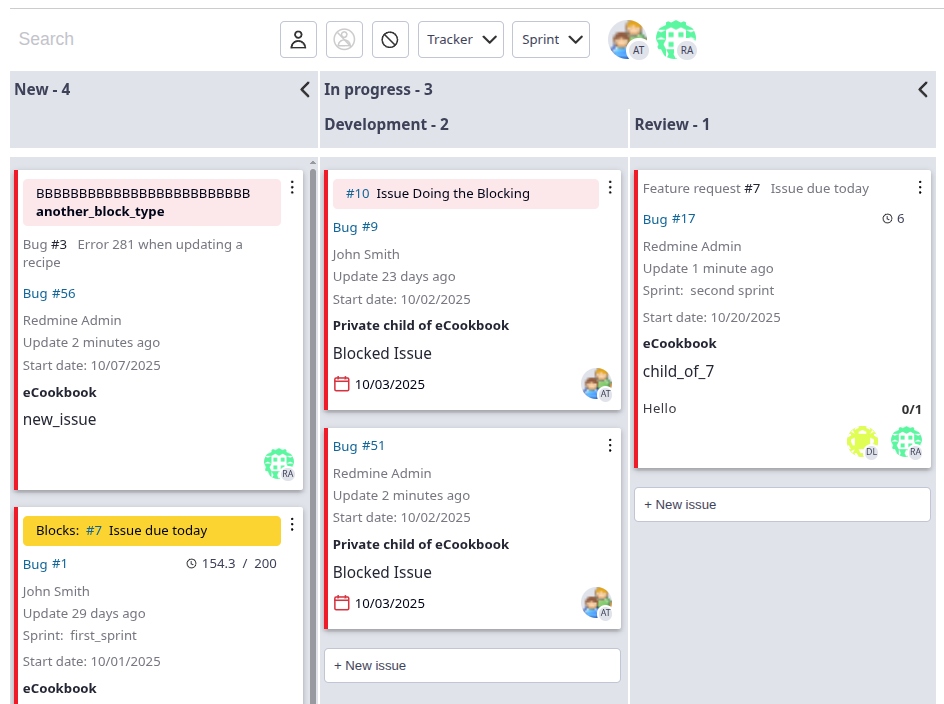
The plugin supports the creation of sub-columns using special naming of statuses.
When creating or editing issue statuses in Redmine, use the colon **:** in the status name.
Format of the status name: Main column: Sub-column
Example:
In progress: developmentIn progress: review
In this case, the main column "In progress" will be created on the kanban board with the sub-columns "development" and "review".
The system will automatically create:
- The main column with the title "In progress"
- Has two sub-columns inside it: "development" and "review"
Board management
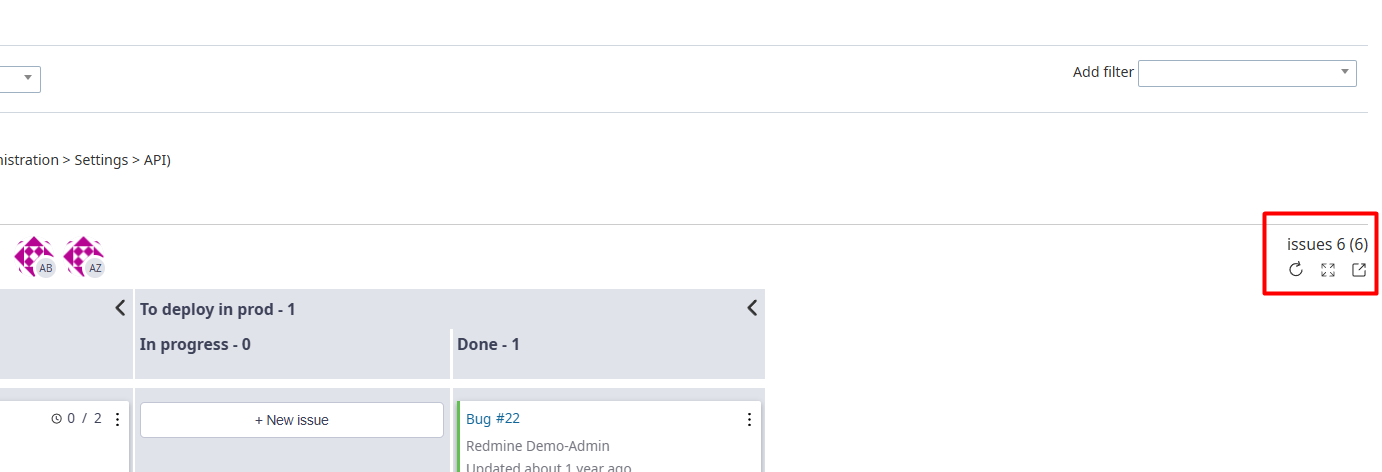
To the right of the board there are buttons to control the display of the board:
- "Update" — downloads up-to-date information about issues and their statuses.
- "Full Screen" — turns the board into full screen mode and removes sidebars and headings for maximum visibility.
- "Expand columns without issues" — by default, empty columns are hidden for compactness
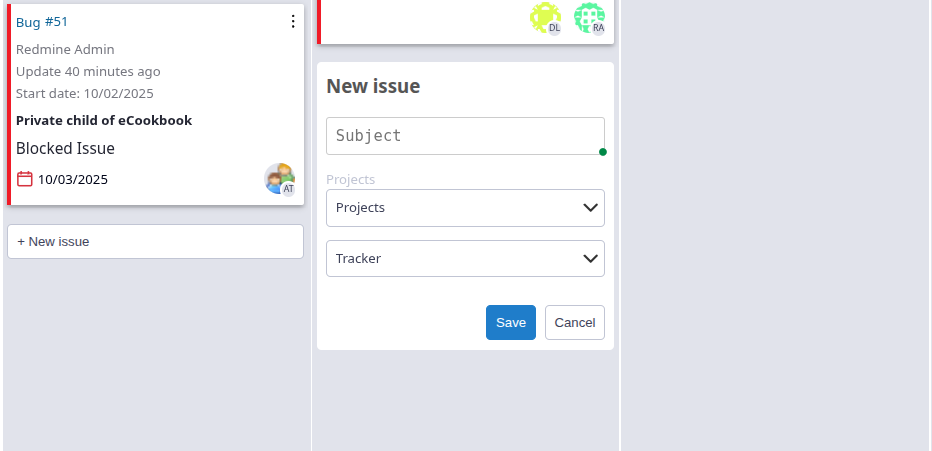
Creating a issue on the board
Below the issues in the column is the create new issue button. When creating, you must specify theme, project, and issue tracker.
Backlog
The Backlog module serves as a tool for planning and prioritizing work, complementing the Kanban board for tactical issue management.
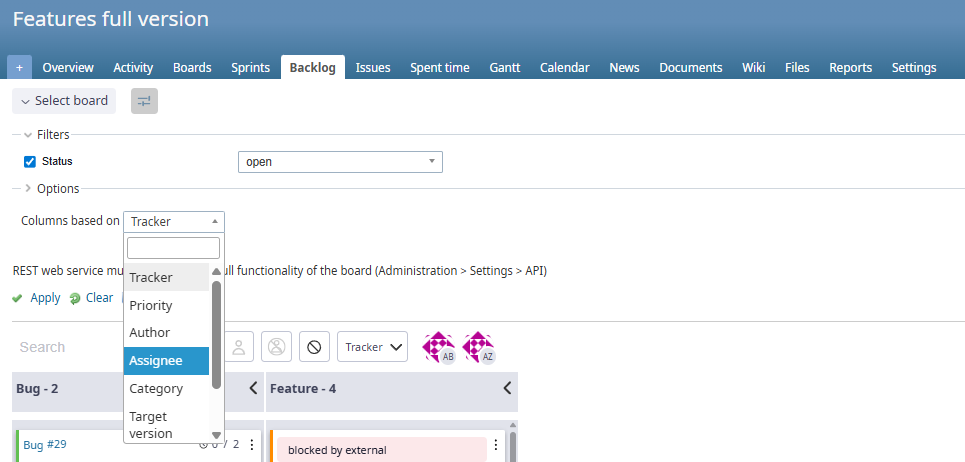
Flexible speaker setup
Unlike a kanban board, where columns are rigidly linked to issue statuses, the Backlog module provides more flexible issue organization options.
The basis of column formation
The columns on the board can be formed based on the following parameters:
- Tracker
- Priority
- The author
- Designated User
- Category
- Version
- Top-level issue
- Sprints
- Customizable fields
Board Features
- Configuring the issue card — managing the set of fields that are displayed on the card.
- Dragging issues between columns — intuitive movement of cards with visual hints about acceptable transitions (taking into account the settings "Sequence of transitions")
- The modal Issue window allows you to quickly view and edit information about a issue without reloading the page.
- Filters — basic board filters, quick filters
- Swimming lanes (Swimlanes) — grouping cards into horizontal lanes according to the selected criterion.
- Color based on — sets the color coding of the cards based on the selected attribute.
- Expand columns without issues — displays empty columns with no issues on the board
- Save the board — the ability to save the current state of the board with active filters and settings.
- Board control — There are buttons to control the display to the right of the board.
- Create a issue on the board — Create a new issue directly from the board.
Sprints
The Sprints feature allows you to organize issues into time-limited iterations. Sprints help you plan work, control deadlines, and visualize team progress on a kanban board.
Setting up Sprints
Enabling the sprints module globally
- Go to Administration → → Modules Kanban (or Administration → Kanban)
- Find the setting: "Show "sprints" in the menu of all projects"
- Set the checkbox
- Save the changes
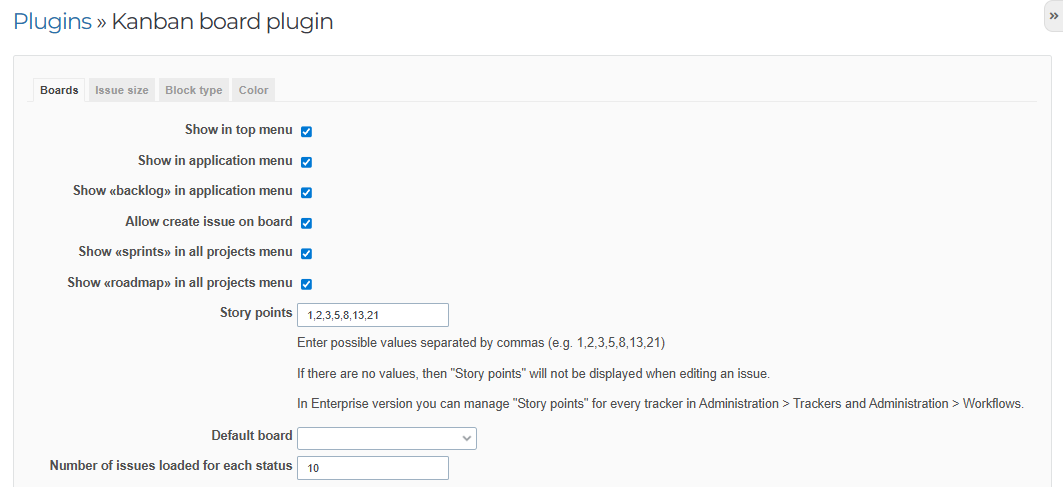
Important: This setting adds the "Sprints" item to the menu of all projects, but for each project you need to additionally activate the module.
Activating sprints for a specific project
- Go to the appropriate Project
- Select Project Settings
- In the stripped "Modules" find the module in the list "Sprints"
- Install the ✅ checkbox in front of it
- Save the changes
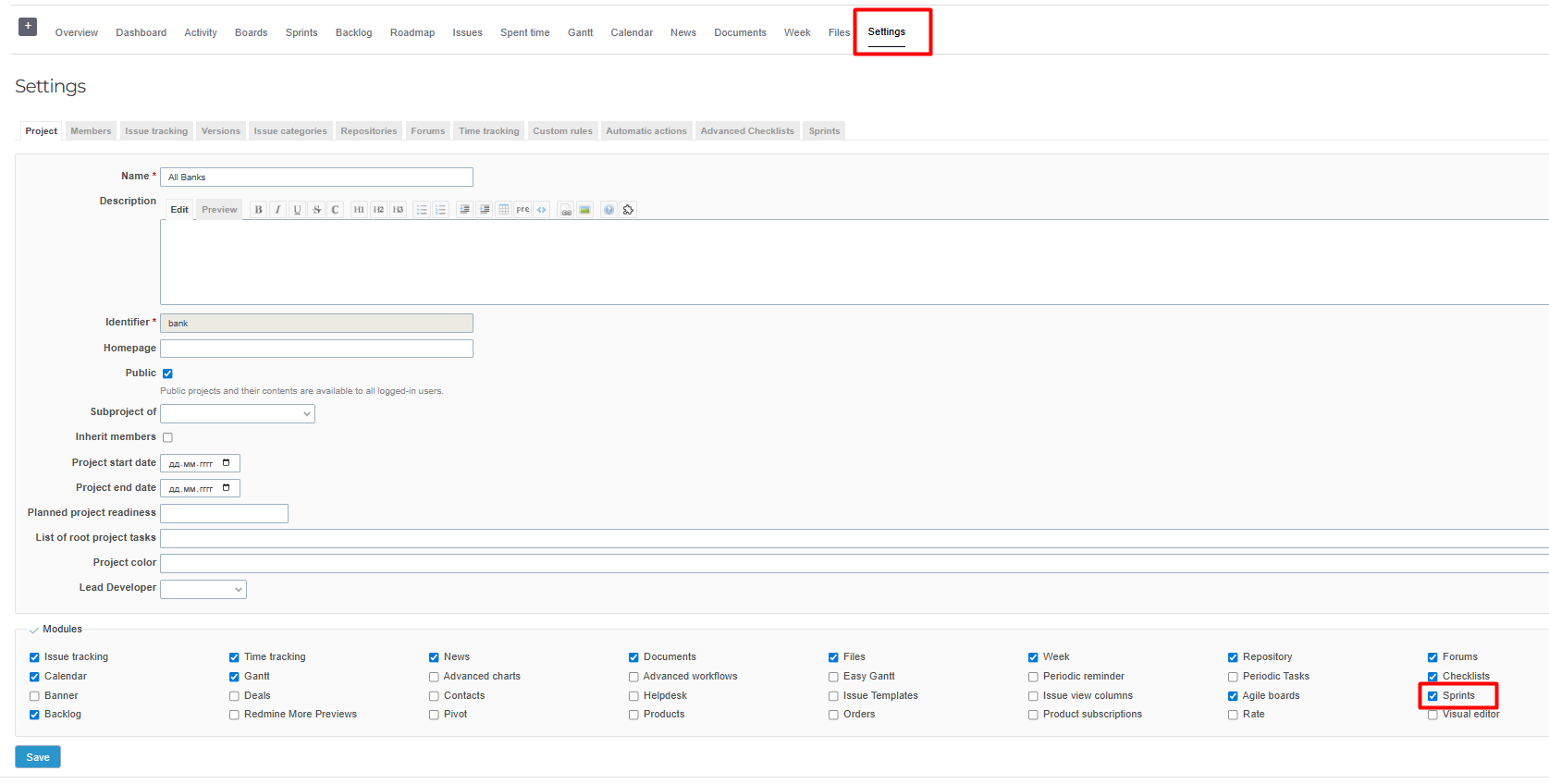
Creating the first sprint
-
In the project menu, click "Sprints"
-
Click "New Sprint" or "Create a Sprint"
-
Fill in the sprint parameters:
- Name (required field)
-
Description
-
Wiki Page 4. Start date 5. Completion date
-
Sharing
-
Default sprint
-
Press "Create"
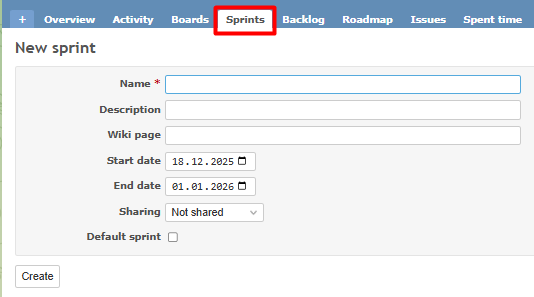
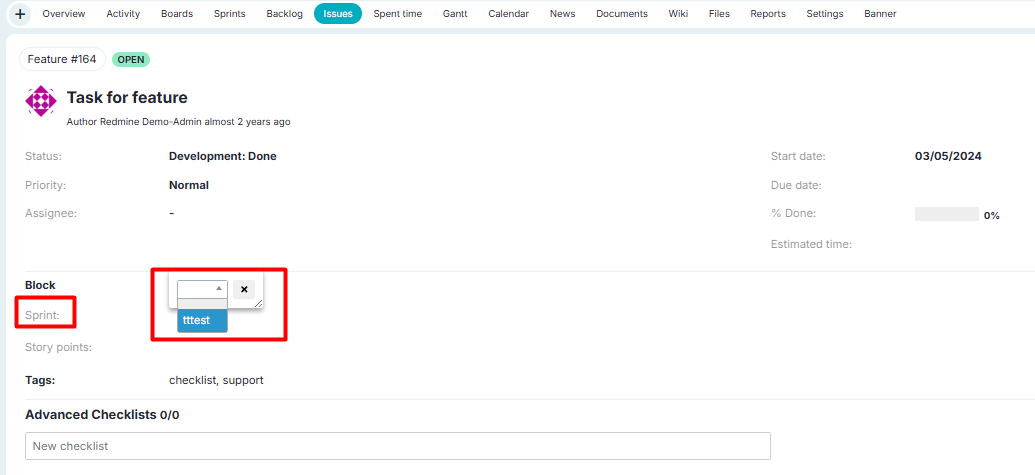
Adding a issue to a sprint
- Open the issue that you want to add to the sprint
- Find the field "The sprint"
- Select the sprint you created in the drop-down list.
- Save the issue
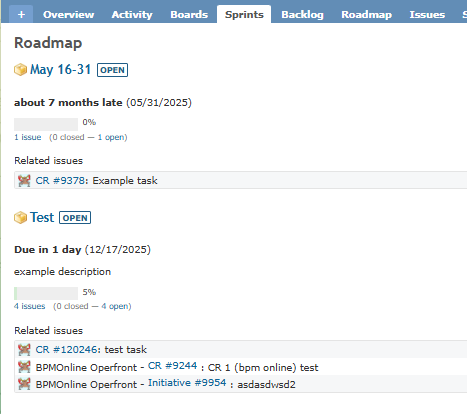
Viewing Sprint issues
- Go to the "Sprints" section of the project
- Select the desired sprint from the list
- The sprint page will display:
- Remaining time until the end of the sprint
- Description of the sprint
- Progress of completion (in percent)
- Estimated labor costs and actual labor costs
- All issues in this sprint
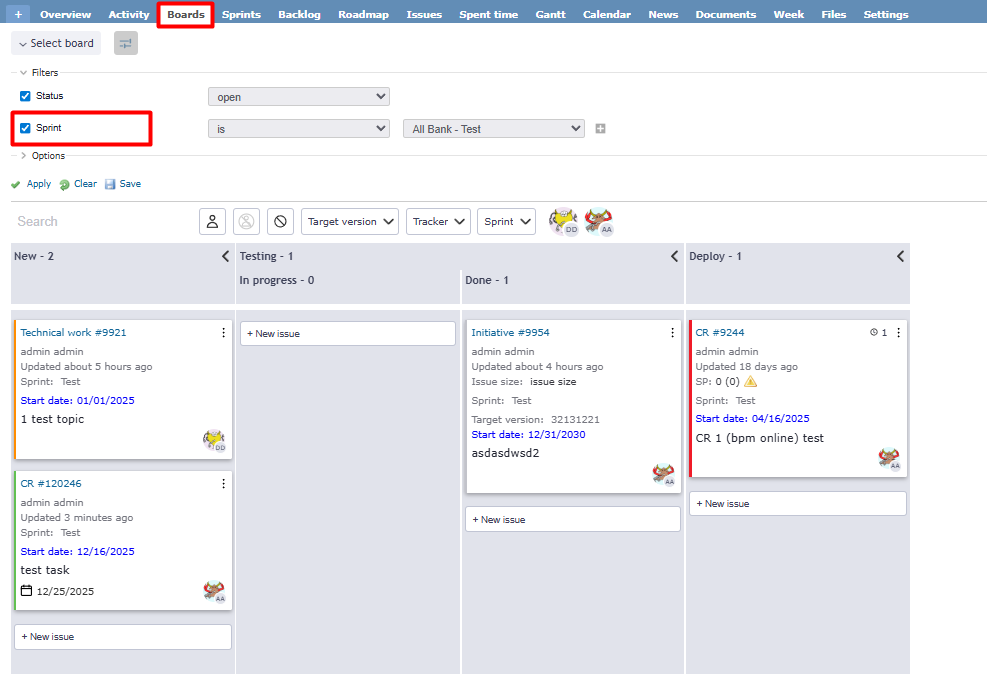
Kanban board with sprints
To display sprints on the kanban board:
- Go to the Kanban board of the project
- In the filter panel, find "The sprint"
- Select the desired sprint
- The board will regroup the issues by sprints
Block
The plugin adds a special block for working with block to the issue view page.
Calculation of the block duration
The system automatically tracks and calculates the duration of all issue block periods.
Calculation rules:
Is taken into account in the duration:
- The entire period from the moment the block is installed to its removal
- Time until the type/reason of the block is changed
- The period until the issue is closed
- The time between block and the subsequent opening of a closed issue
Is not counted in the duration:
- Changes in the type of block for already closed issues
Calculation examples:
Scenario 1: Standard Lockdown
The issue was blocked on 01.10 → The block was lifted on 05.10 Duration: 4 days
Scenario 2: Block and then close
Issue blocked 01.10 → Closed 03.10 → Opened 07.10 Duration: 6 days (01.10-07.10)
Scenario 3: Changing the type of block for a closed issue
The issue was blocked on 01.10 → Closed on 03.10 → The type of block was changed on 05.10 Duration: 2 days (01.10-03.10), 05.10 changes are not taken into account
This approach ensures accurate accounting of issue downtime and allows you to analyze the real impact of blockages on work processes.
Other plugin features
Modal window in the issue list (requires the queries_perfect plugin)
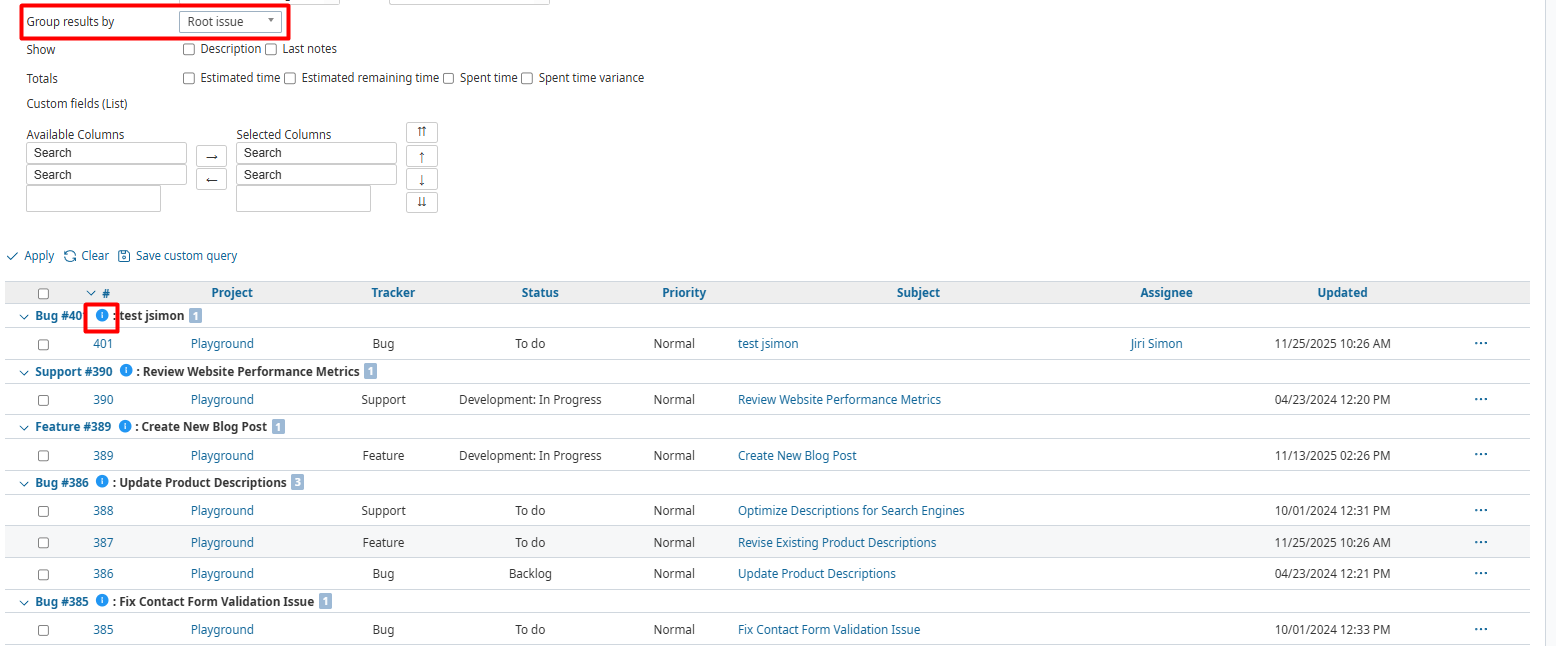
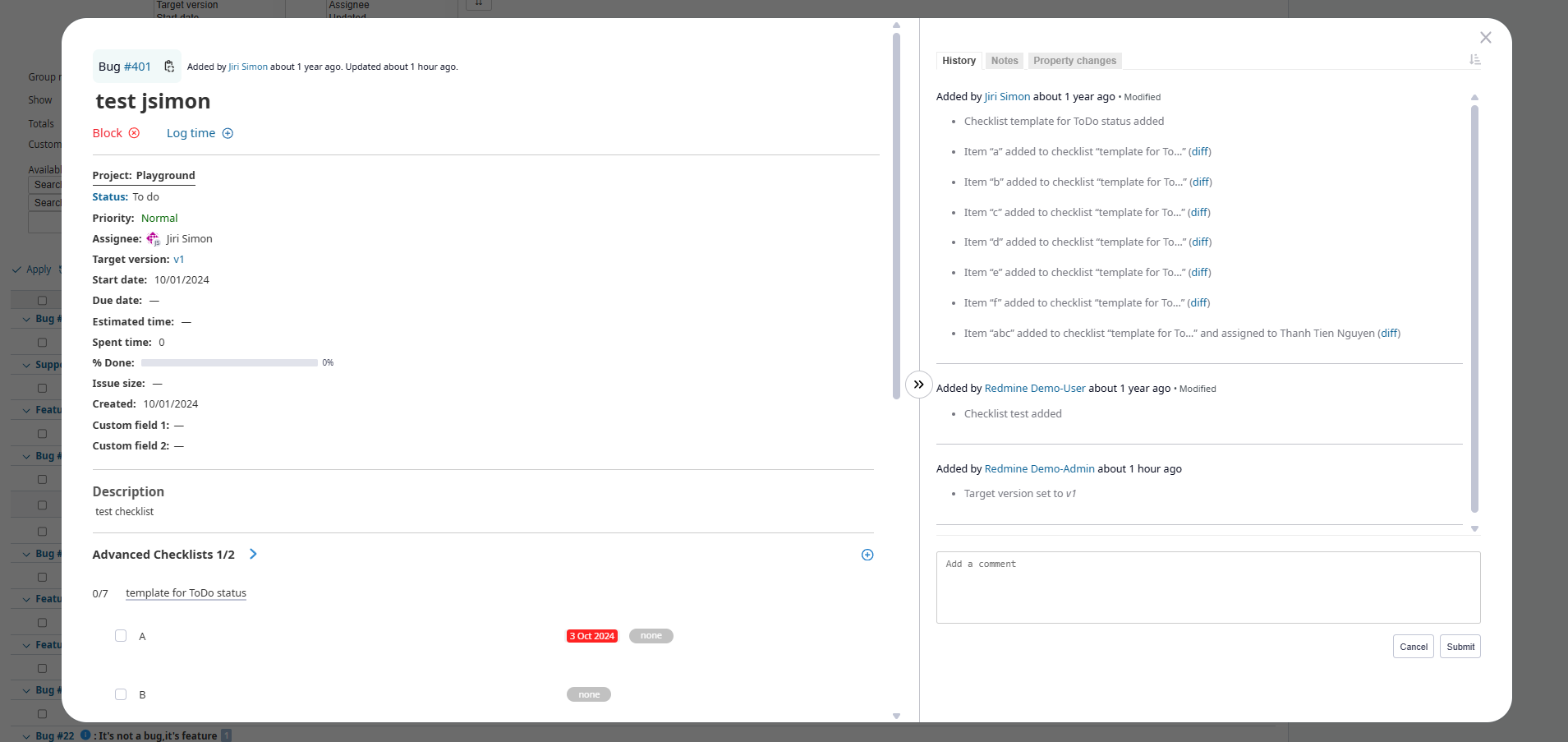
On the issue list page, when grouping by "Parent Issue" is enabled or "Top-level Issue", you can quickly open a top-level issue in a modal window by simply clicking on it. This allows you to view and edit issue details without leaving the current view or losing the grouping context.
FAQ
How do I add a new column to the board?
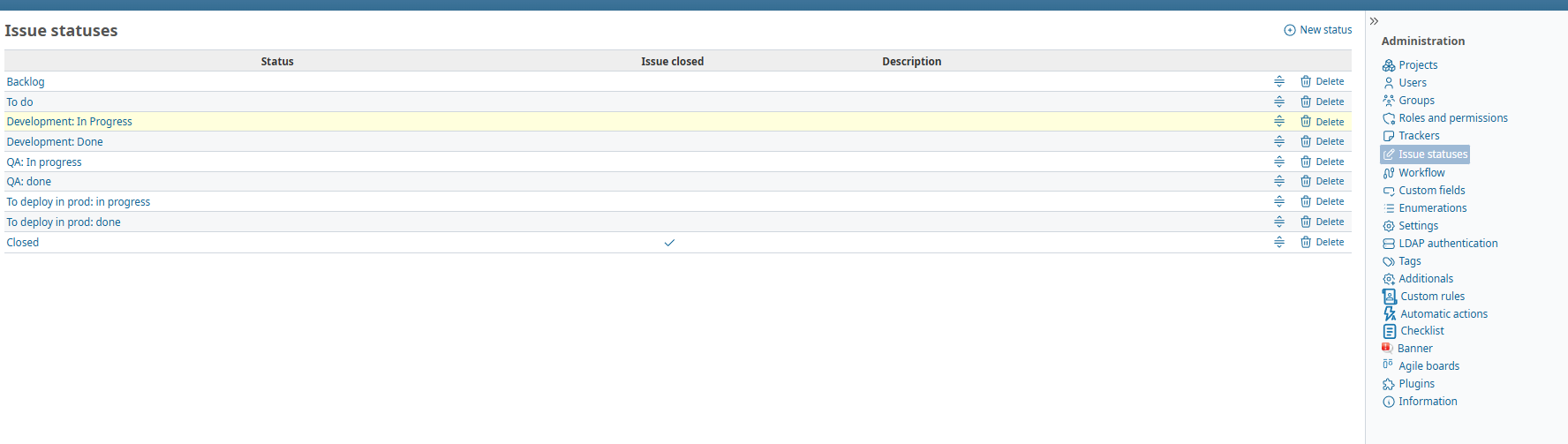
The columns on the board correspond to the statuses of your issues. The statuses can be changed in the section "Administration" > "Issue statuses" . Each status can be changed or deleted.
Keep in mind that the columns on the Agile board actually have the same order as the issue statuses, as shown in the screenshot below.
How do I view the kanban board for all projects?
- Enable the option in the plugin settings:
- "Administration" → "Modules" → "Kanban Board" → "Configure"
- Tab "Kanban"
- Check the box "Show in the application menu"
- Click on the item "Kanban" in the top menu of Redmine
- You will see a summary board with all the issues from all the projects that you have access to.
How can I allow non-admin users to view kanban boards?
Administration→Roles and access rights in the Kanban and backlog blocks, grant viewing rights
