Advanced Checklists
Description
Advanced Checklists is a Redmine plugin that adds checklist management directly to issues. The plugin allows breaking down complex tasks into concrete, verifiable steps, tracking progress, and ensuring quality control.
Key Features
- Unlimited items in checklists
- One-click editing — quick entry and modification of items
- Reordering items via drag-and-drop
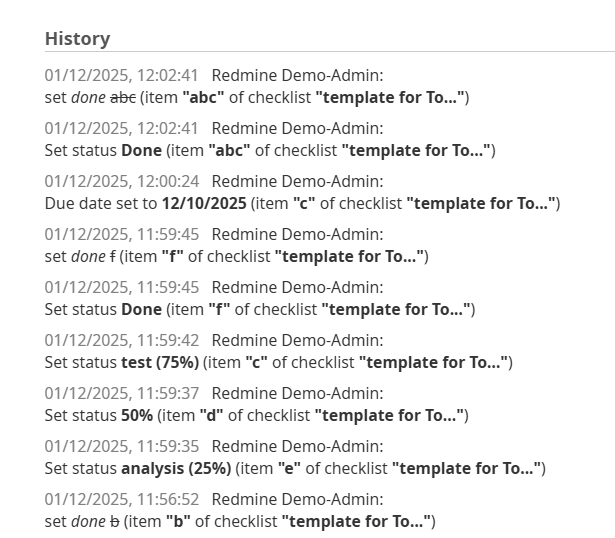
- Full change history for all checklist edits
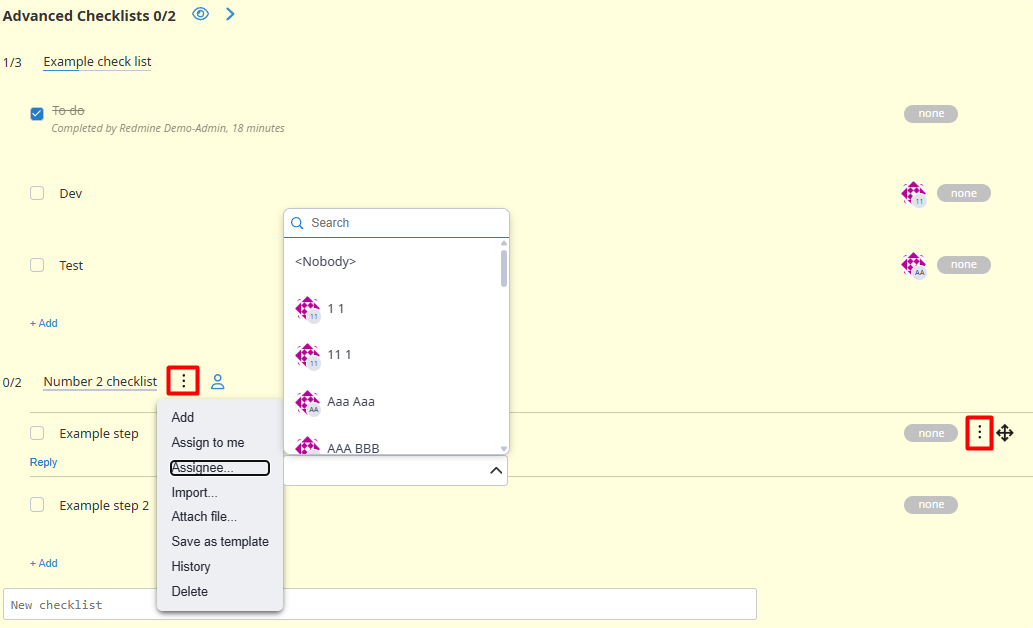
- Assign performers to each checklist item
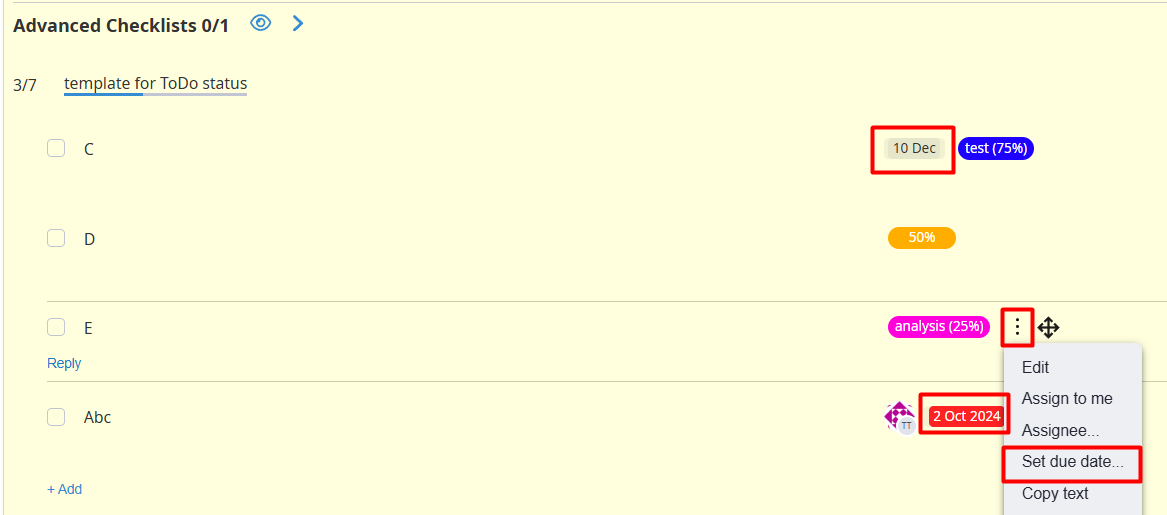
- Set deadlines for any checkbox
- Send notifications to the assigned user
- Status support for each checklist item
- Comments under each item for clarifications and discussion
- Flexible checklist templates for repeated processes
- Automatic checklist creation from templates
- Visual progress tracking of checklist completion
- Color-coded statuses for items
- Personal checklists (Visa)
Intended for
- Development teams — to control quality and verify completion criteria
- Testers — to create test cases and verification checklists
- Project managers — to standardize processes and monitor completion
- Operations teams — for routine procedures and checks
The plugin is ideal for teams that want to improve work quality, standardize processes, and provide transparency by decomposing tasks into verifiable elements.
Compatibility
Redmine: 5.1 - 7.0
Browsers: Chrome, Firefox, Safari, Edge
Databases: MySQL 5.7, MySQL 8.0, PostgreSQL 14–16, SQLite
Plugins: redmine_kanban, advanced_workflow, advanced_charts, appearance_custom, module_manager, periodic_reminder, user_group_editor, queries_perfect, selectbox_autocompiler, cost_calculator.
Installation and Update
- Remove the old plugin version from Redmine if it exists:
cd redmine/plugins
rm -r redmine_advanced_checklists
- Copy the new
redmine_advanced_checklistsplugin folder intoredmine/plugins/. - Run migrations from the Redmine root folder:
bundle exec rake redmine:plugins:migrate RAILS_ENV=production NAME=redmine_advanced_checklists
- Stop and start Redmine. (On some Redmine installations — for example, Docker — it is important to stop and then start the server rather than performing a restart.)
Removal
- Run the uninstall migration from Redmine root:
bundle exec rake redmine:plugins:migrate RAILS_ENV=production NAME=redmine_advanced_checklist VERSION=0
- Remove the plugin folder from
redmine/plugins/:
rm -r redmine_advanced_checklist
- Stop and start Redmine.
Configuration
- Configure user roles at Administration → Roles and permissions.
- Enable the Checklists module for projects in project settings.
- Check and adjust plugin settings at Administration → Modules → Advanced Checklists or Administration → Checklists.
Administration
Modules section
You can access plugin settings in two ways:
- Administration → Modules → Advanced Checklists
- Administration → Checklists
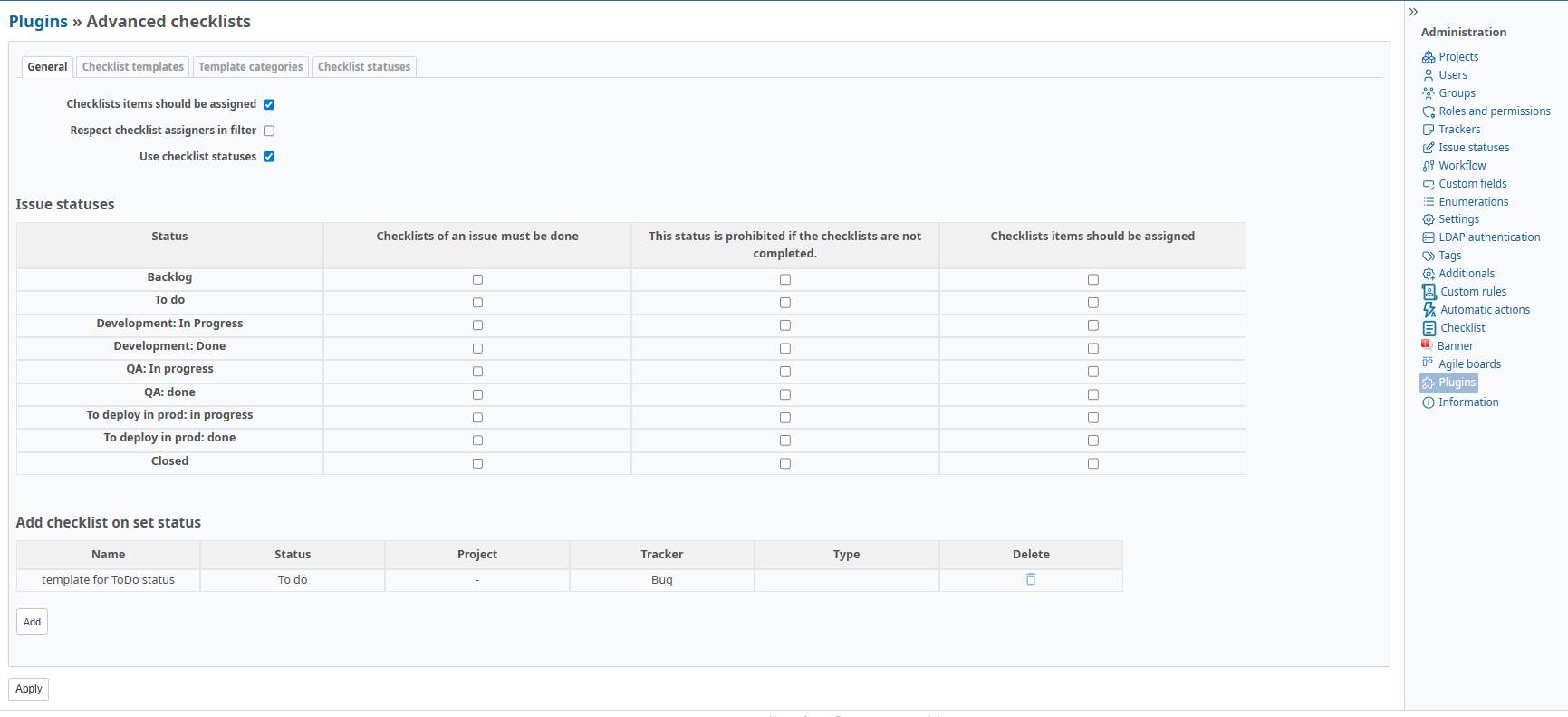
"General" tab
Here you can configure parameters for your use case: templates, categories, and statuses.
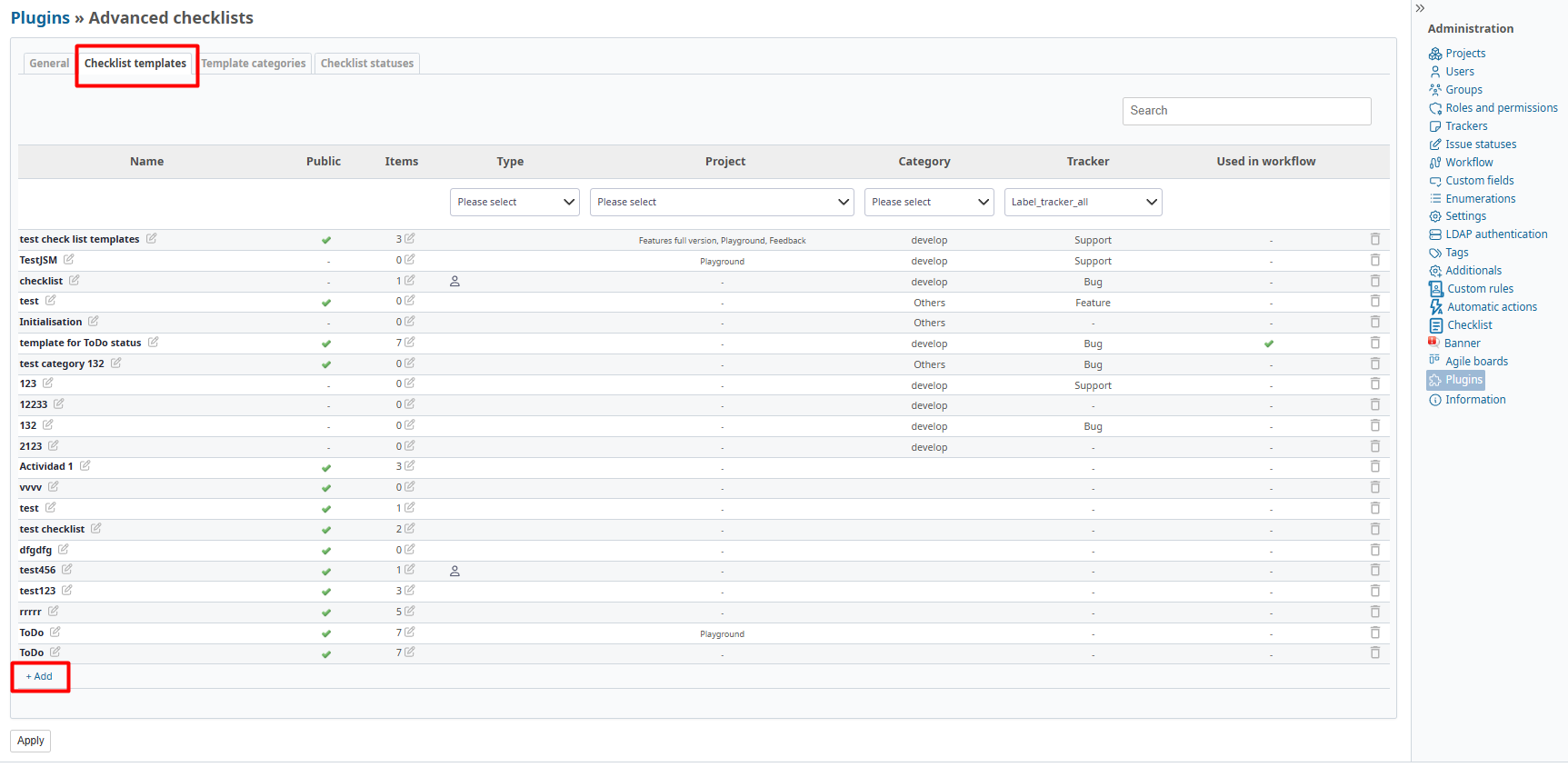
"Checklist Templates" tab
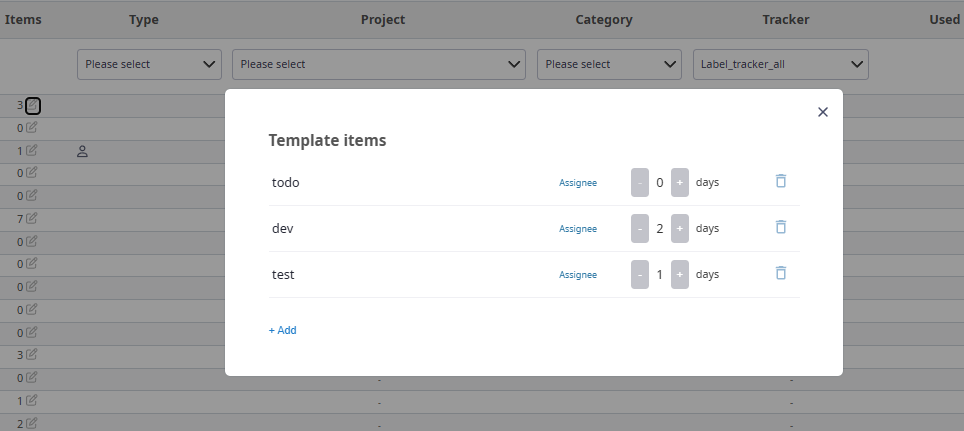
Go to the Checklist Templates tab to create and configure templates.
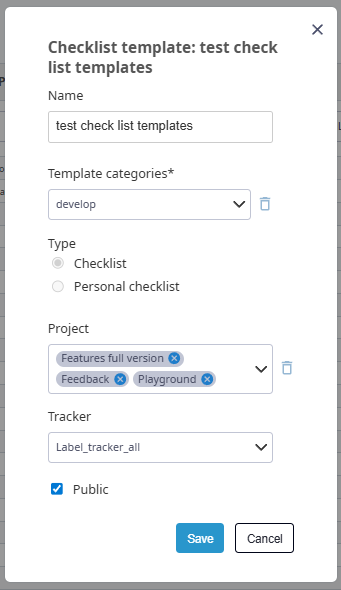
Main parameters
- Template name — a clear name for identification
- Category — group templates by topic or department
- Template type — defines scope of application
- Project — bind to a specific project (optional)
- Tracker — assign to specific issue types (optional)
After setting the main parameters, fill the template:
- Add items in the desired order
- Write clear, verifiable checklist items
- Mark items as required when needed
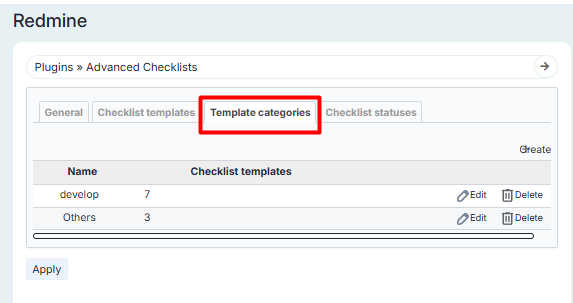
"Checklist Template Categories" tab
In this section you can create and manage categories for grouping templates.
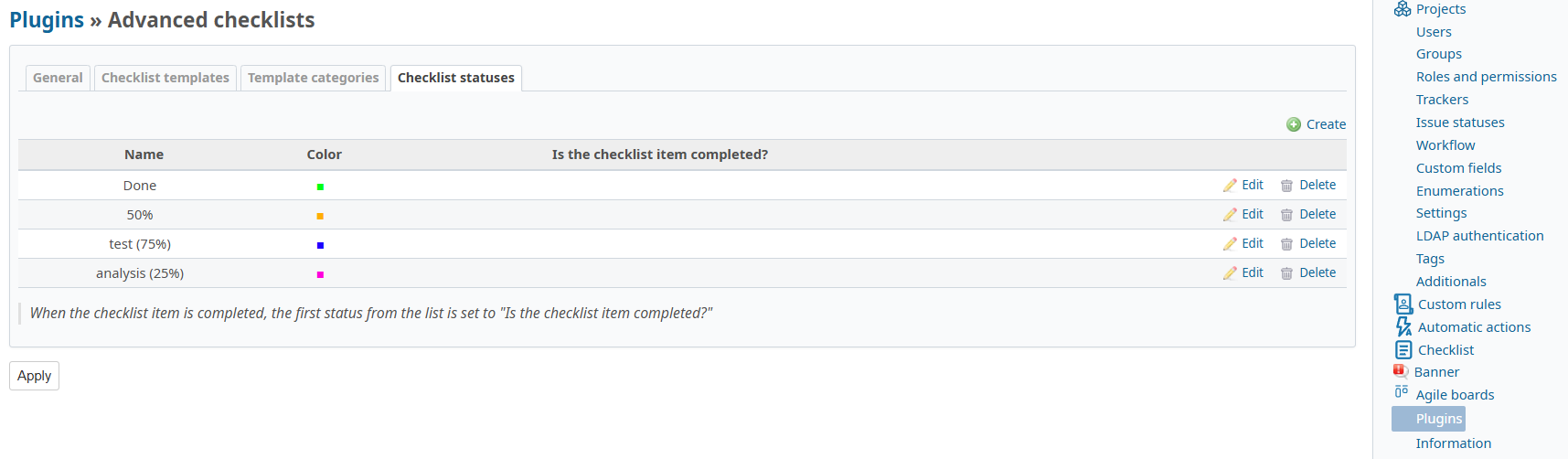
"Checklist Statuses" tab
Creating statuses
- Configure color palette according to your project needs
- If a status has "Checklist item completed?" enabled, then setting this status marks the item as completed automatically
- When an item is completed, the first status from the "Checklist item completed?" list is applied
Roles and permissions section
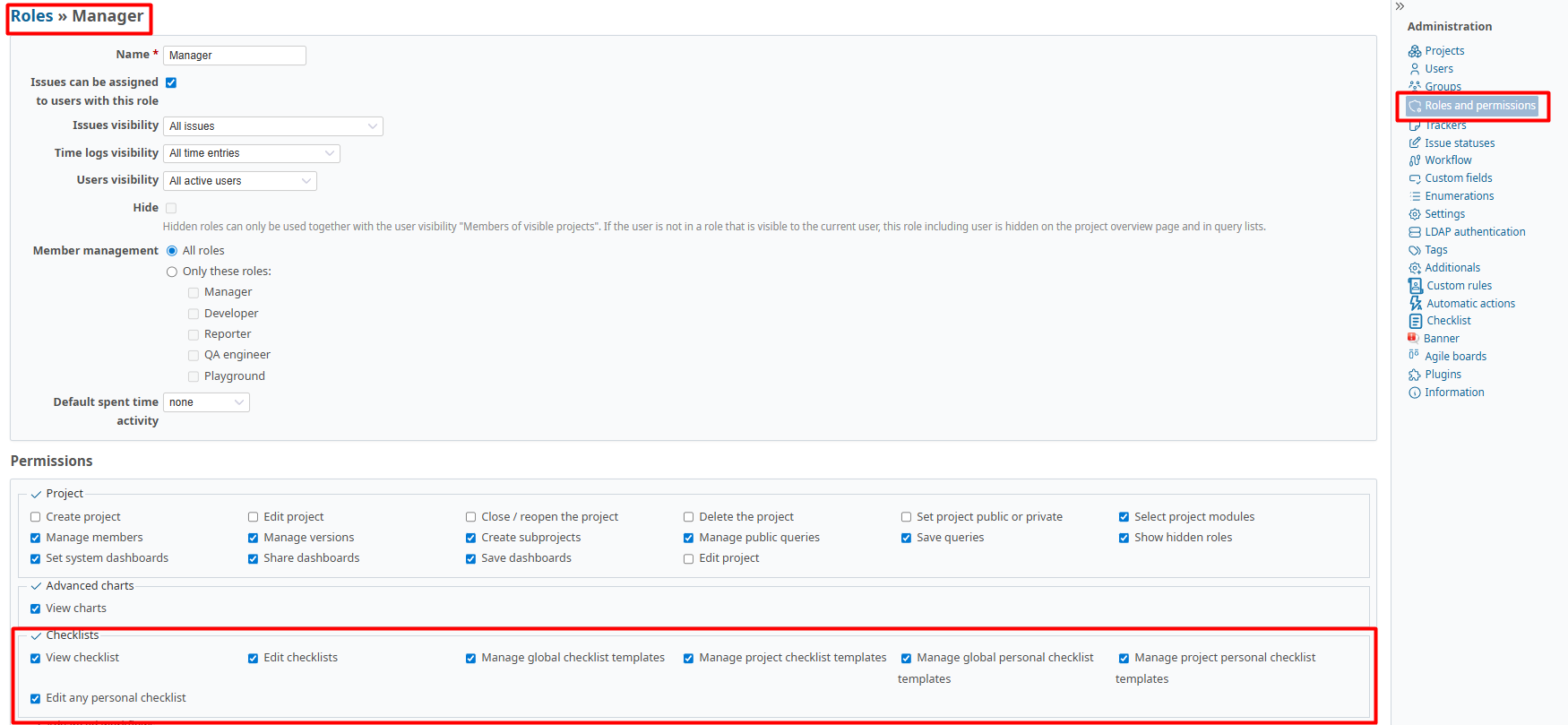
To manage access rights for checklists, enable the necessary permissions in the Checklists section.

Available permissions include:
- View checklists
- Edit checklists
- Manage global checklist templates
- Manage project checklist templates
- Manage global personal checklist templates
- Manage project personal checklist templates
- Edit any personal checklist
Project Settings
"Checklists" tab
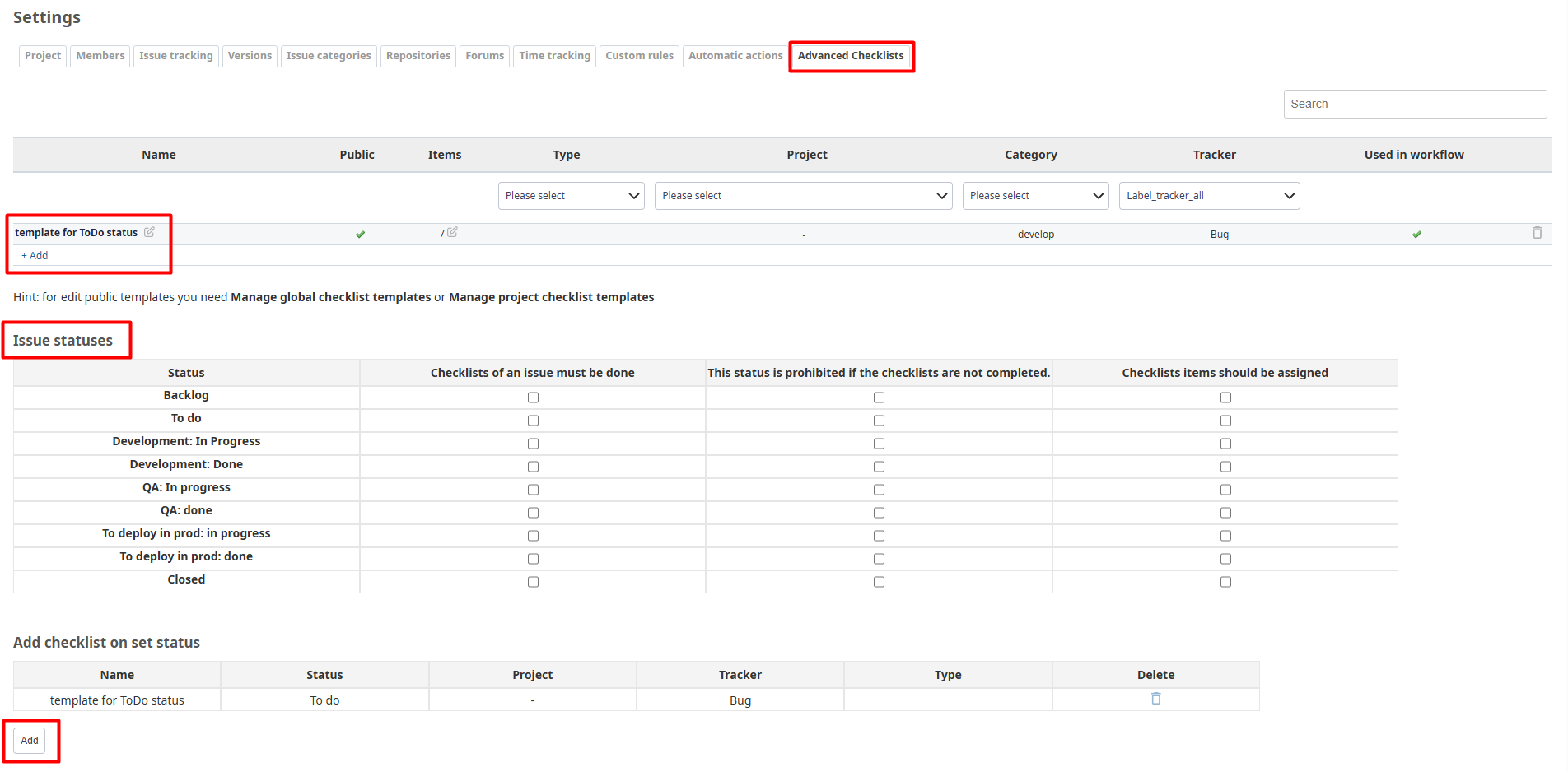
On this tab you can configure:
- Project checklist templates
- Automatic checklist creation rules
- Categories and statuses for checklist items
Usage
Adding checklists to issues
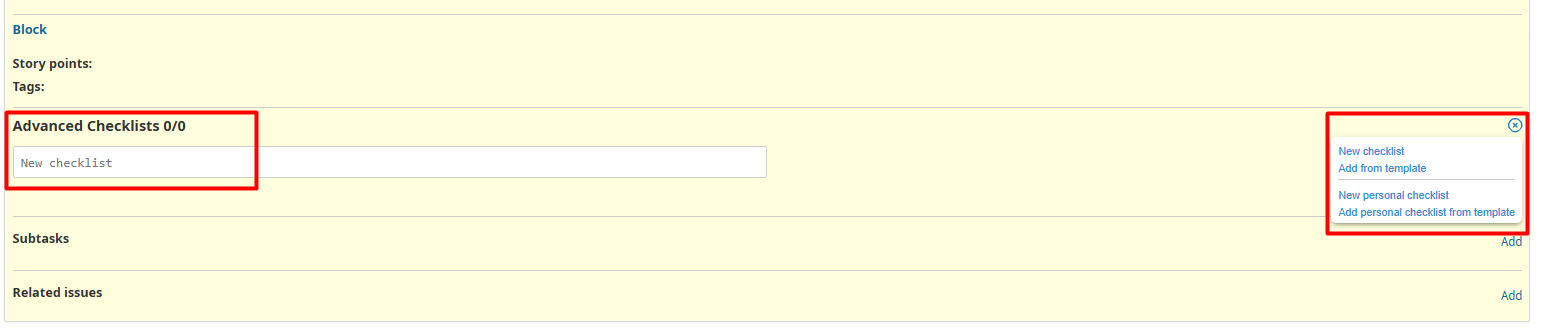
Checklists are attached directly to Redmine issues. To start using checklists:
- Open the issue view.
- Locate the Checklist field.
- Start typing the first item, or use "Add from template" to apply an existing template.
Advanced capabilities
-
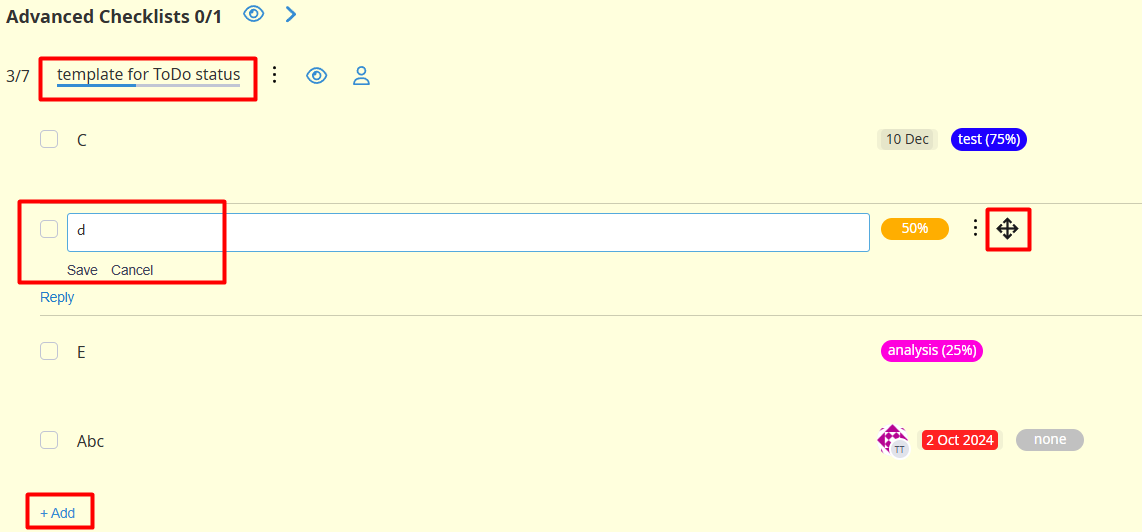
Unlimited items. Create detailed checklists of any complexity.
-
Flexible structure:
- Drag handle next to each item
- Instant save of the new order
-
Visual progress tracking:
- Progress bar for quick status overview
-
Inline editing of titles:
- Click the checklist or item title — the text becomes editable.
- Make changes and click Save to apply, or Cancel to discard.
- Changes apply immediately without reloading the page.
Comment system
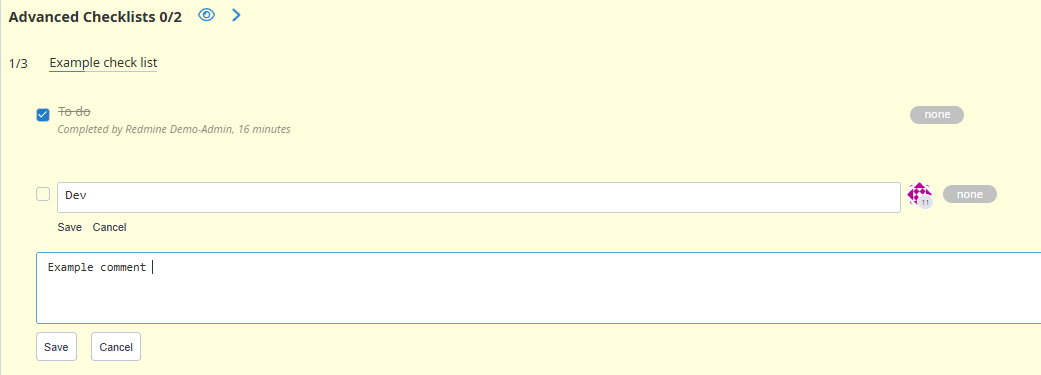
- Leave detailed comments under each checklist item
- Add clarifications, instructions, or additional requirements
- Comment history is retained for auditing
Full change history
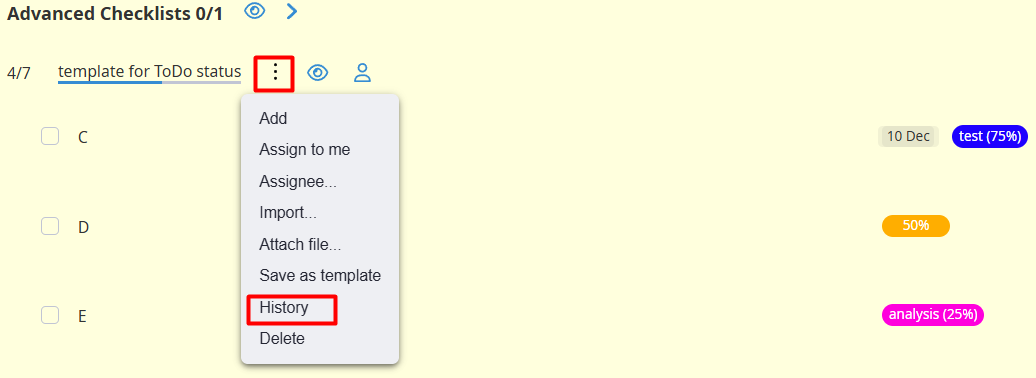
Track all modifications with detailed auditing. The system records:
- Who changed each item and when
- Status changes of completion
- Adjustments to deadlines and assignees
Deadlines for any checkbox
Assign individual due dates to checklist items. The system provides:
- A date picker calendar
- Reminders for approaching deadlines
- Visual highlighting of overdue items
Assigning performers
Assigning a performer for the whole checklist
- Select one user responsible for the entire checklist — suitable for small tasks or single ownership.
Assigning performers per item
- Assign different users to individual checklist items
- Distribute workload among team members
- Clear division of responsibility for complex tasks
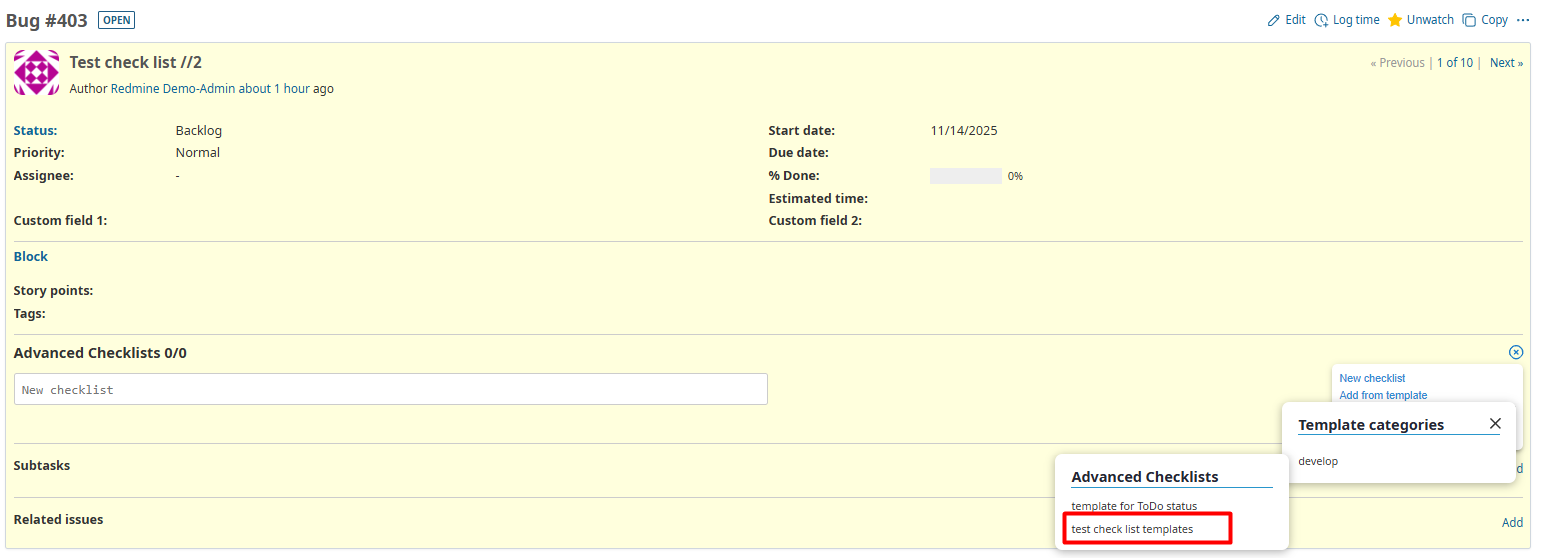
Quick addition from a template
- Open the issue in Redmine.
- Find the checklist section and click "Add from template".
- Choose a suitable template from the available list.
Personal checklists (Visa)
Personal checklists are checklists editable by a limited set of users:
Who can edit personal checklists:
- Checklist author — the user who created the checklist, including items added by other users
- Issue assignee — the user assigned to the issue
- Users with the "Edit any personal checklists" role permission
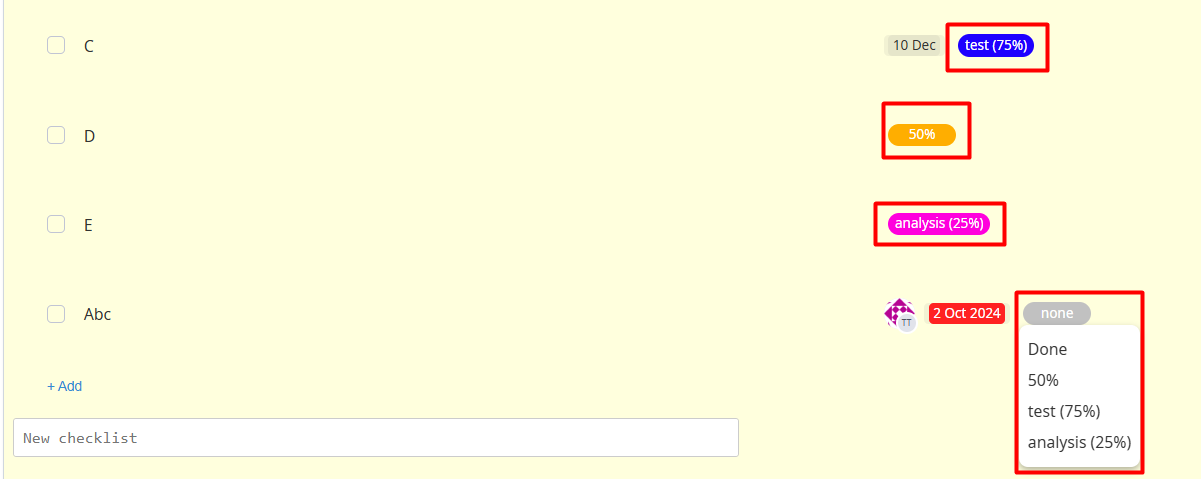
Visual status management
- Apply color-coded statuses to each checklist item
- Quick visual identification of completion states
- Flexible labeling system, e.g.: Done, In Progress, Not Started, Needs Review
Automatic creation
Automatic checklist creation can be configured in Project → Settings → Checklists or Administration → Modules → Advanced Checklists.
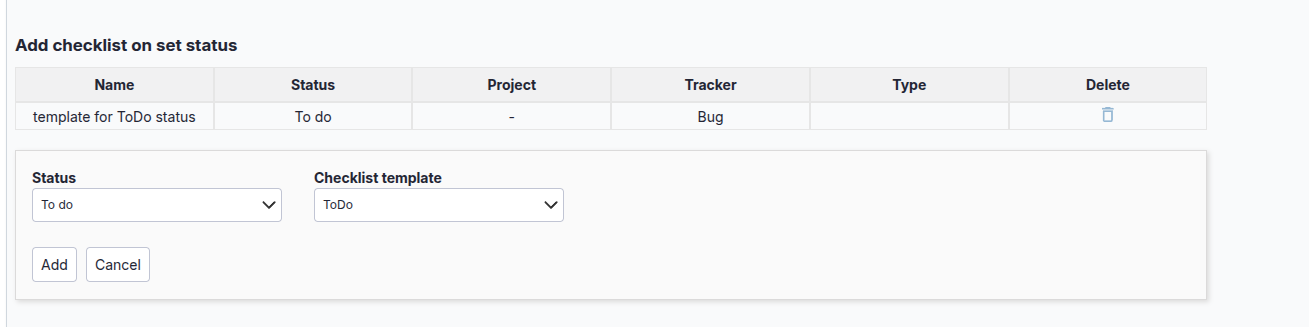
Automatic addition when an issue moves to a certain status:
- Example: Add the "ToDo" checklist when the status becomes "To do".
Project and tracker fields will be populated according to the checklist template.
Checklist item reminders
The "Send reminder" feature sends a personal email notification to the user assigned to a specific checklist item. It helps to draw the assignee's attention to unfinished work and reduce resolution time.
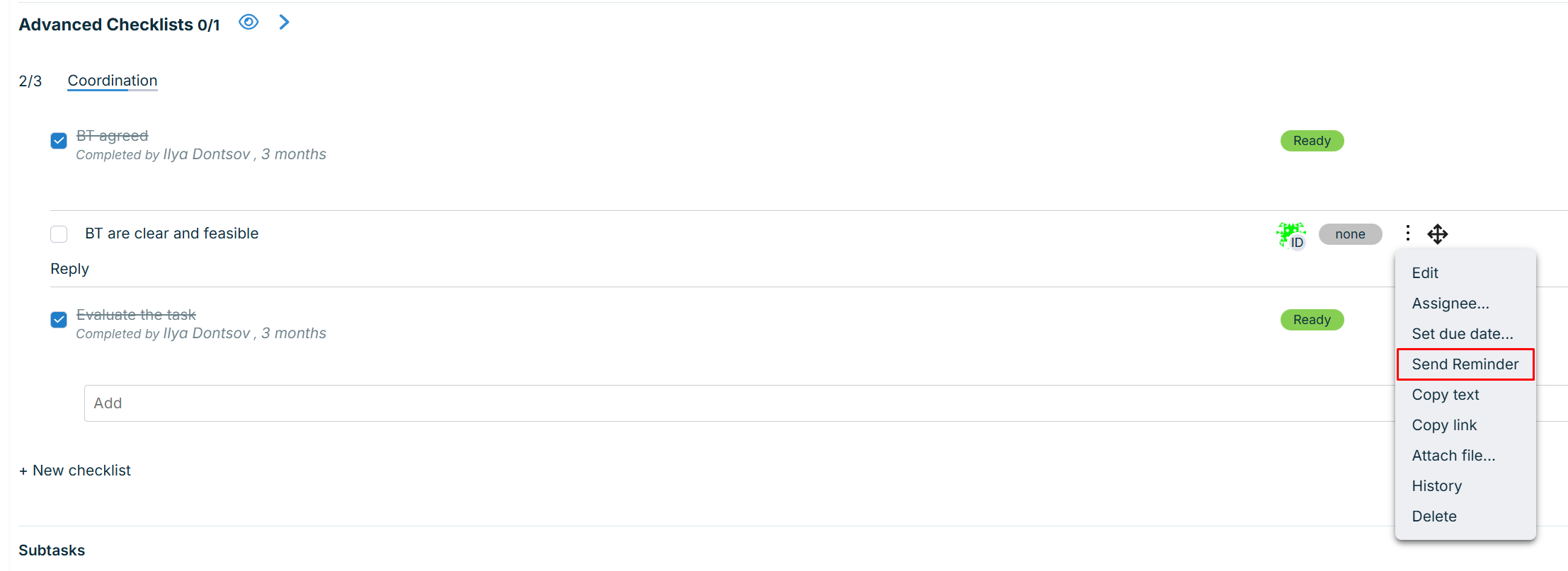
Reminder for a single item
To send a reminder for one item:
- Find the target item in the issue checklist.
- In the item's menu (three dots
⋮) choose "Send reminder". - The assigned user will receive an email notification immediately. A toast notification confirms successful sending.
This is available when an item has a specific user assigned (not a group).
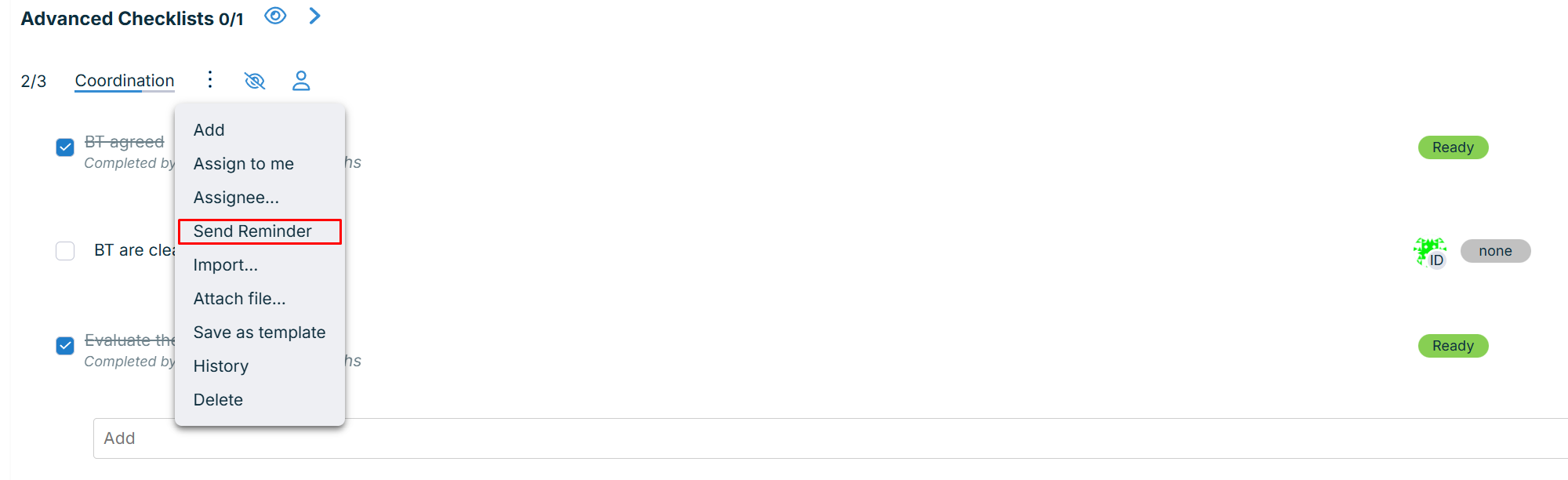
Reminder for the whole checklist
If a checklist contains multiple items, you can send reminders for multiple items at once.
- In the checklist menu (top panel) click "Send reminder" (located below the "Assigned" button).
- A popup will list recipients and the items for which reminders were sent.
Important: In this mode, emails are sent only for items that meet activity conditions (not completed and assigned to a user).
Frequently Asked Questions (FAQ)
How do I allow non-admin users to view and manage checklists?
If non-admin users cannot see or edit checklists on issues, grant them the appropriate permissions.
To configure permissions:
- Go to Administration.
- Click Roles and permissions.
- Select the role you want to modify.
- Find the Checklists section.
- Enable the checkboxes for required permissions:
- View checklists — to display checklists on issues
- Edit checklists — to manage checklist items
- Create checklists — to add new checklists
- Mark as completed — to change item completion status
- Click Save to apply changes.