Email Reporting
Description
Email Reporting is a tool for automating monitoring and reporting in Redmine. The plugin allows you to configure regular sending of personalized reports directly to your email, providing timely access to up-to-date information without the need to manually form requests.
Key Features
- Regular dispatch of emails with a list of issues, a list of time entries, or a time entries report
Compatibility
Redmine: 5.1 - 7.0
Web Browsers: Chrome, Firefox, Safari, Edge
Databases: MySQL 5.7, MySQL 8.0, PostgreSQL 14-16, SQLite
Plugins: advanced_workflow, redmine_kanban, redmine_advanced_checklists, advanced_charts, appearance_custom, module_manager, user_group_editor, queries_perfect, selectbox_autocompiler, cost_calculator.
Installation and Update
-
Remove the old version of the plugin from Redmine if it exists.
cd redmine/plugins rm -r periodic_reminder -
Copy the new periodic_reminder plugin folder to redmine/plugins/
-
Run migrations in the root Redmine folder
bundle exec rake redmine:plugins:migrate RAILS_ENV=production NAME=periodic_reminder -
Stop and start Redmine. (In some Redmine installations (e.g., in Docker), it is important to stop and start the server, not restart it.)
Uninstallation
-
Run the delete command in the root Redmine folder
bundle exec rake redmine:plugins:migrate RAILS_ENV=production NAME=periodic_reminder VERSION=0 -
Delete the periodic_reminder plugin folder from redmine/plugins/
rm -r periodic_reminder -
Stop and start Redmine.
Configuration
- Configure user roles in Administration -> Roles and Permissions.
Administration
Section «Roles and Permissions»
- Temporarily disable notifications (silent mode)
- Manage your mailings
- Edit any mailings
Usage
Silent Mode
This mode disables outgoing mail notifications that are normally sent due to user actions.
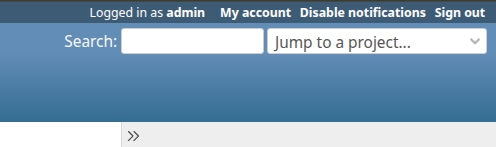
After disabling the notification, a warning banner appears:

Cancel - turns the notification back on
Mailings
To create a new mailing:
- Go to the Projects section
- Select the Mailing tab
- Click the "Create" button
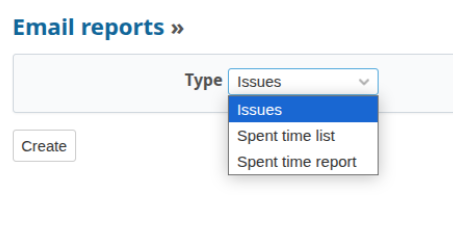
- Select one of three types of mailing:
- Issues
- Spent time list
- Spent time report

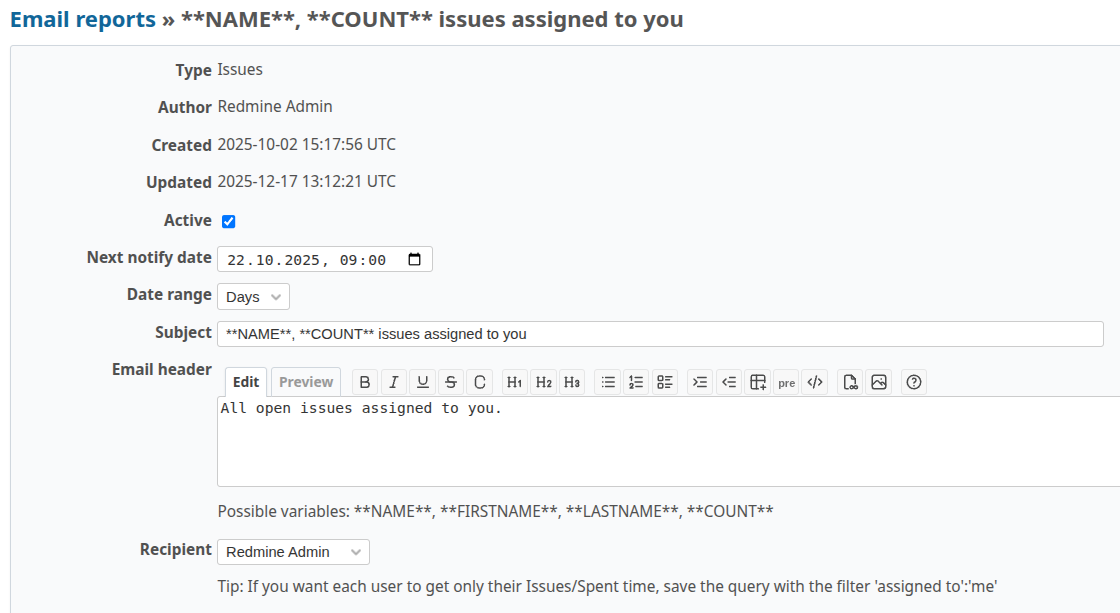
General settings for all types of mailings
Basic Mailing Settings
- Active - enables/disables the mailing
- Next notify date - the start date of the mailing
- Date range - frequency of sending:
- Day
- Week
- Month
- Year
- Subject
- Email header - will be displayed before the table
- Recipients - selected user, recipient groups, or all active users
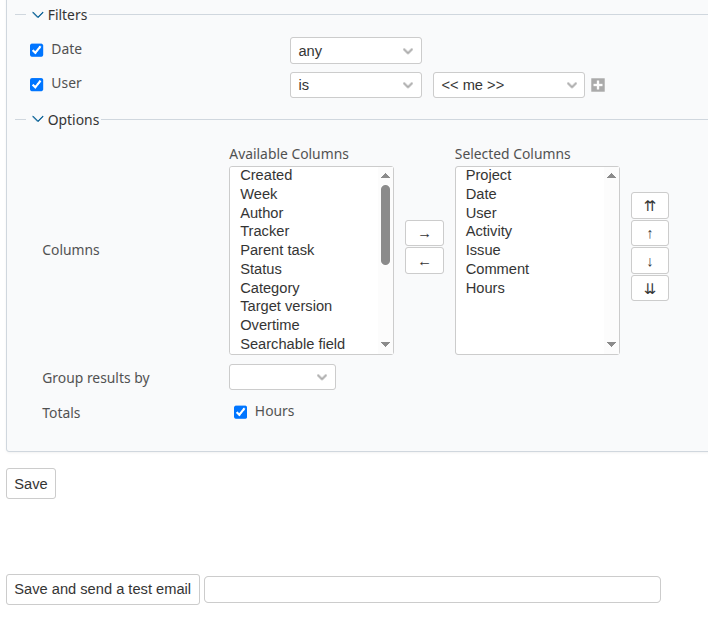
Filters
- Filters - conditions for selecting data to display in the table
Options
- Columns - selecting columns to display in the table
Save Buttons
- "Save" - saves the mailing, which will be sent automatically on schedule
- "Save and send a test email" - saves the mailing and sends a test email to the specified email
Features for each type of mailing
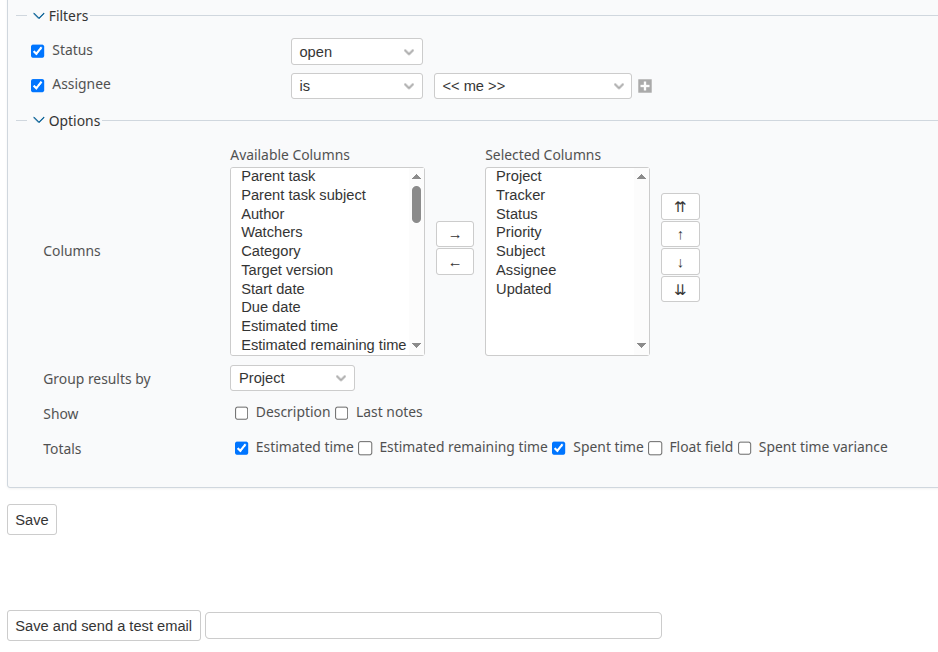
"Issues" Mailing
Additional display options:
- Grouping
- Showing issue parameters
- Issue totals
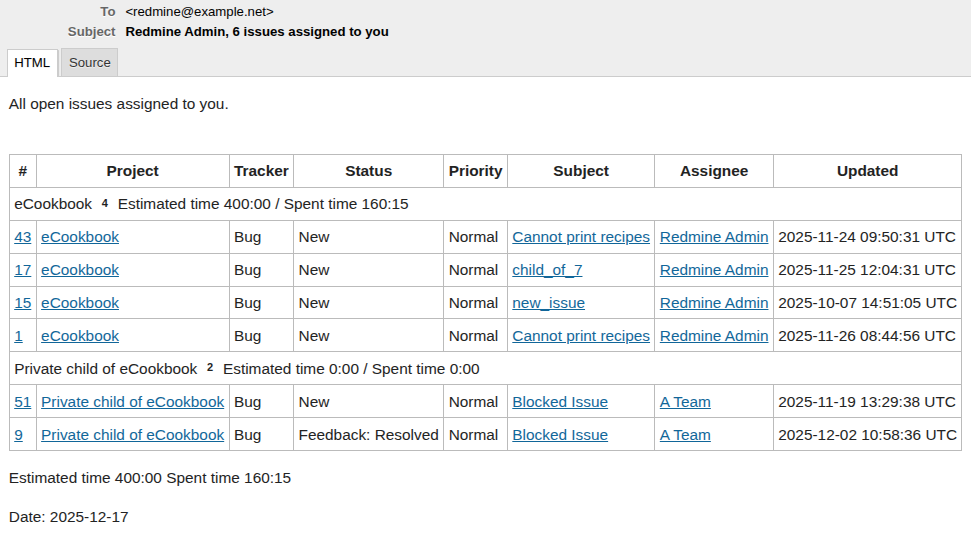
Example of an "Issues" mailing email
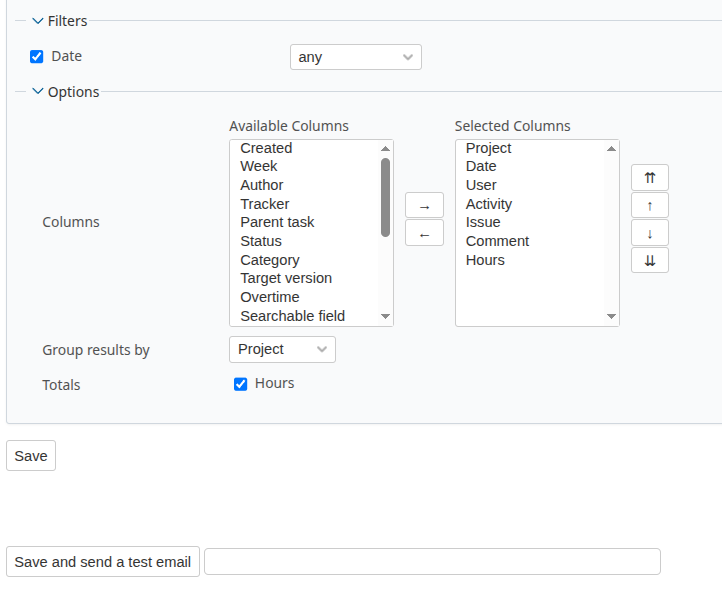
"Time Entries List" Mailing
Additional display options:
- Grouping
- Time entry totals
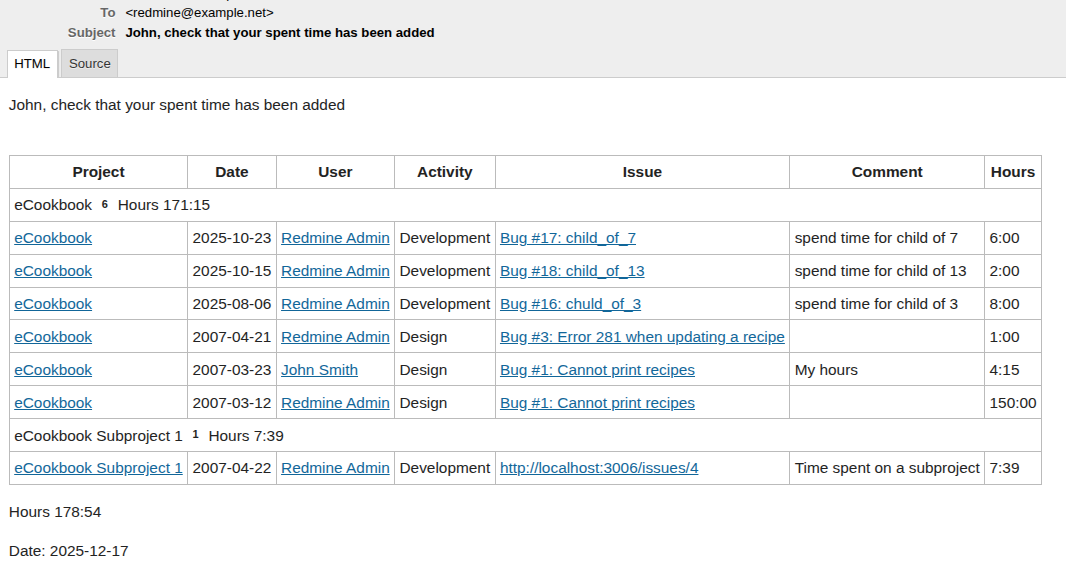
Example of a "Time Entries List" mailing email
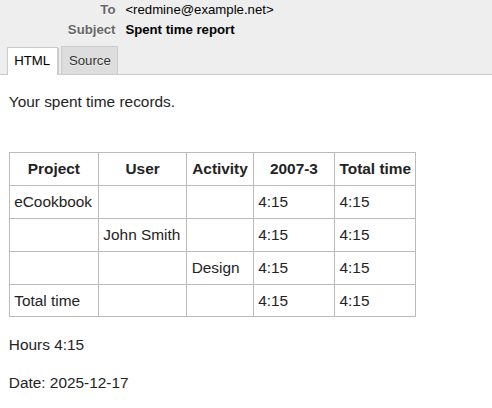
"Time Entries Report" Mailing
Features: The report will be generated based on the first three selected columns.
Additional display options:
- Time entry totals
Example of a "Time Entries Report" mailing email