Advanced Workflow
Description
A plugin for flexible configuration and automation of business processes. It allows you to configure and automatically execute complex scenarios that go beyond the standard Redmine workflow. A flexible "custom rules" system also allows you to set specific restrictions.
Key Features
- New custom field format: "Date and Time"
- Custom Rules
- Automatic Actions
Compatibility
Redmine: 5.1 - 7.0
Web Browsers: Chrome, Firefox, Safari, Edge
Databases: MySQL 5.7, MySQL 8.0, PostgreSQL 14-16, SQLite
Plugins: redmine_kanban, redmine_advanced_checklists, advanced_charts, appearance_custom, module_manager, periodic_reminder, user_group_editor, queries_perfect, selectbox_autocompiler, cost_calculator.
Installation and Update
-
Remove the old version of the plugin from Redmine, if it exists.
cd redmine/plugins rm -r advanced_workflow -
Copy the new
advanced_workflowplugin folder toredmine/plugins/. -
Run migrations in the Redmine root folder.
bundle exec rake redmine:plugins:migrate RAILS_ENV=production NAME=advanced_workflow -
Stop and start Redmine. (In some Redmine installations (e.g., Docker), it is important to stop and start the server, not just restart it.)
Uninstallation
- Run the uninstall command in the Redmine root folder.
bundle exec rake redmine:plugins:migrate RAILS_ENV=production NAME=advanced_workflow VERSION=0
- Remove the
advanced_workflowplugin folder fromredmine/plugins/.
rm -r advanced_workflow
- Stop and start Redmine.
Configuration
- Configure user roles in Administration -> Roles and permissions.
- Enable the "Advanced Workflow" module for projects in each project's settings.
- Check and modify other plugin settings in Administration -> Plugins -> Advanced Workflow.
Administration
Roles and permissions section
- Manage rules at the project level - access to editing rules and actions in the project.
"Custom fields" section
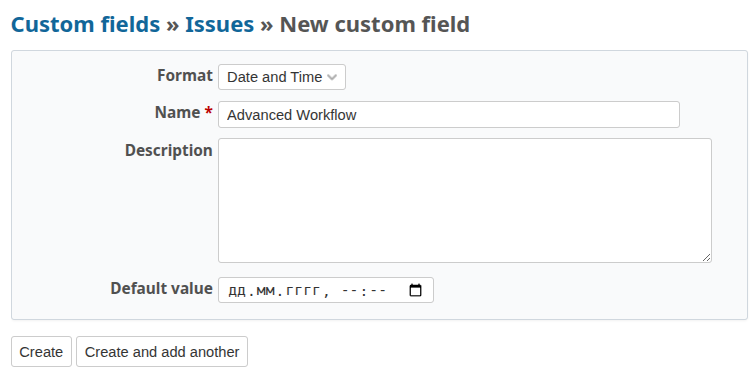
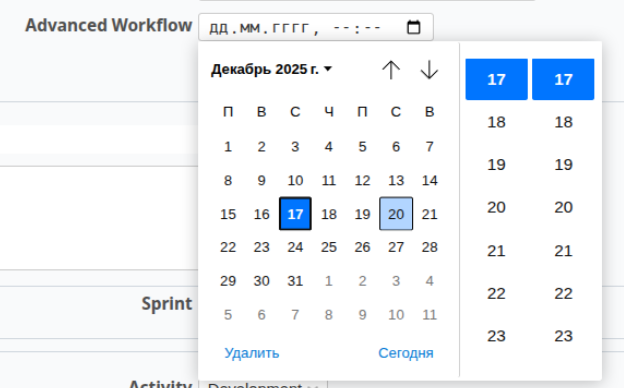
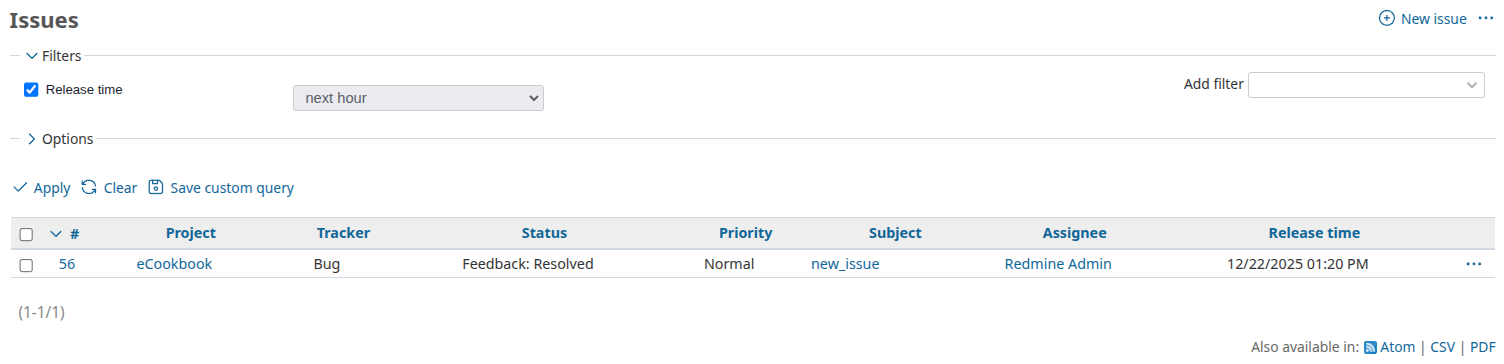
The Advanced Workflow plugin adds a new custom field format: "Date and Time"
"Date and Time" can be used as a filter (condition).
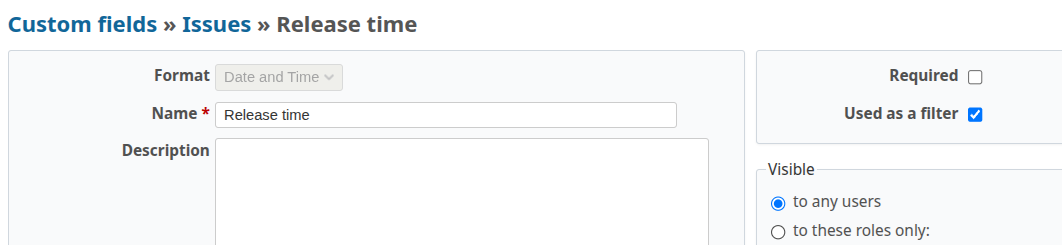
Available options:
- Next hour - the filter will include issues whose "Date and Time" field value falls within the next hour from the current UTC time.
"Plugins" section
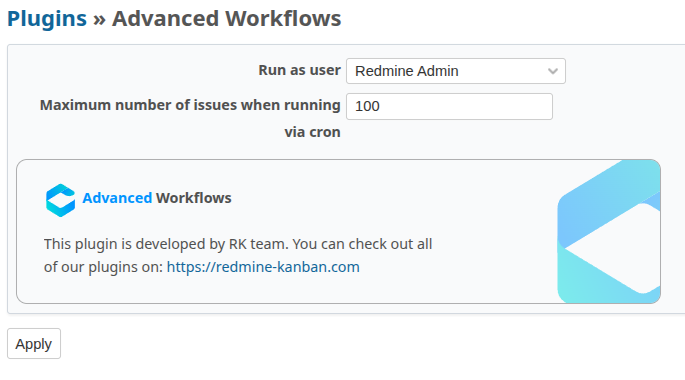
In Administration → Plugins → Advanced Workflow you can configure:
- Run as user - Option to select an admin on whose behalf scheduled actions will be executed.
- Maximum number of issues when executing scheduled actions.
"Custom Rules" section
Custom rules allow you to set restrictions on assigning issues to users under defined conditions.
In Administration → Custom Rules you can create and configure rules:

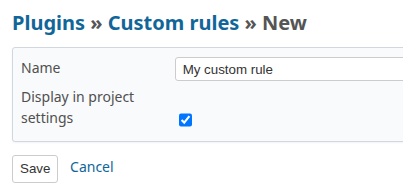
Creating rules
When creating, specify the name and display in project settings:
Editing rules
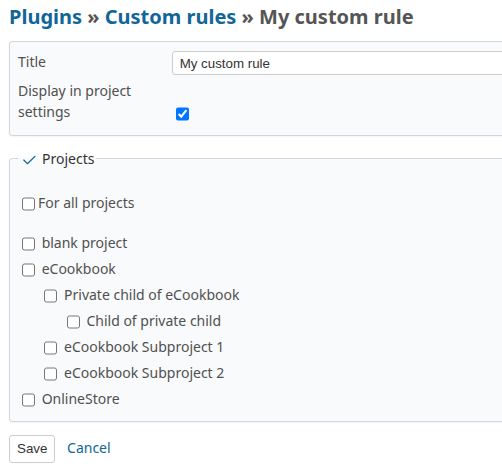
After creating a rule, you can edit the conditions and restrictions.

Clicking on the rule name opens the editing window. Here you can specify in which projects the rule will be enabled.
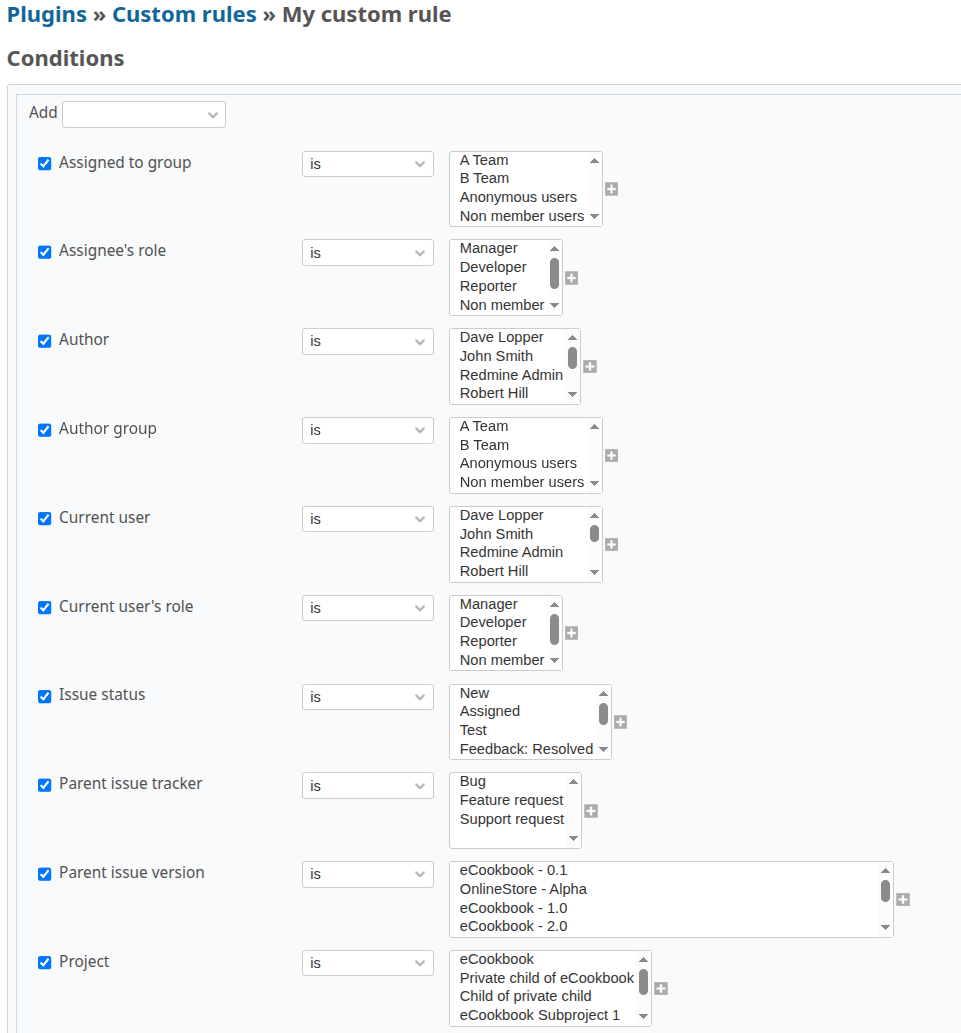
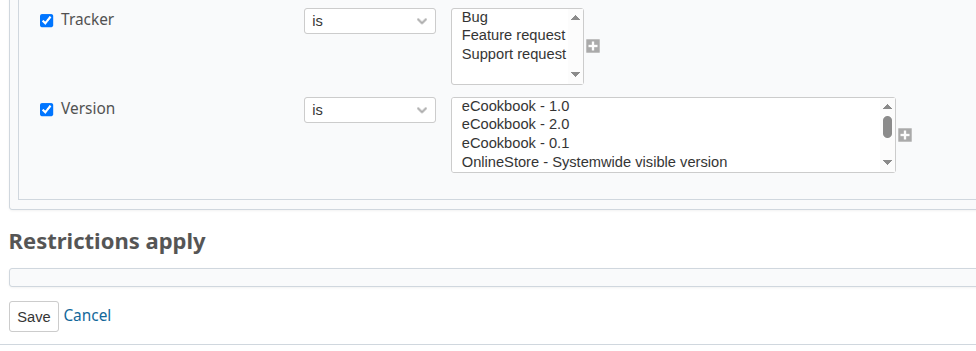
Possible conditions
- Project
- Tracker
- Version
- Author
- Current user
- Assignee's group
- Author's group
- Assignee's role
- Current user's role
- Issue status
- Parent issue tracker
- Parent issue version
- Custom fields for "Issues" of types "List", "Text", "Float", "Integer", "Date", "Date and Time".
- Custom fields for "Projects" of types "List", "Text", "Float", "Integer", "Date".
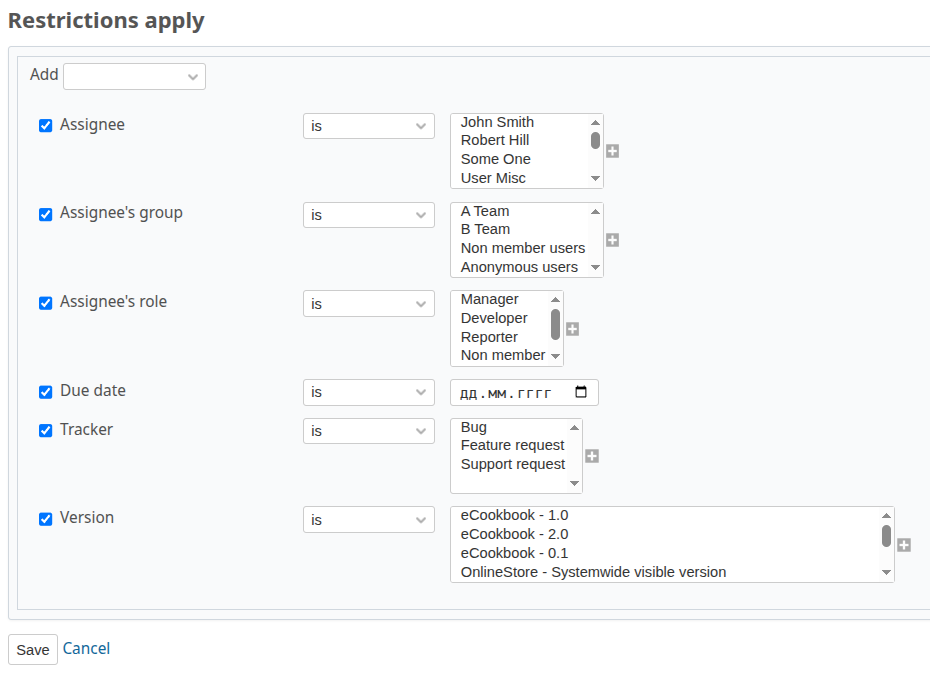
Possible restrictions
- Assignee
- Assignee's group
- Assignee's role
- Due date
- Tracker
- Version
"Automatic Actions" section
Automatic actions allow you to perform selected actions when an issue is saved or on a schedule, within specified conditions.
In Administration → Automatic Actions you can create and configure actions:

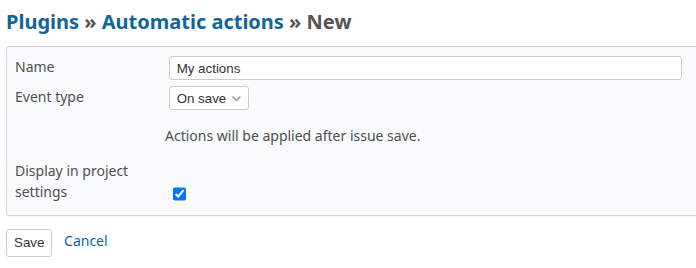
Creating actions
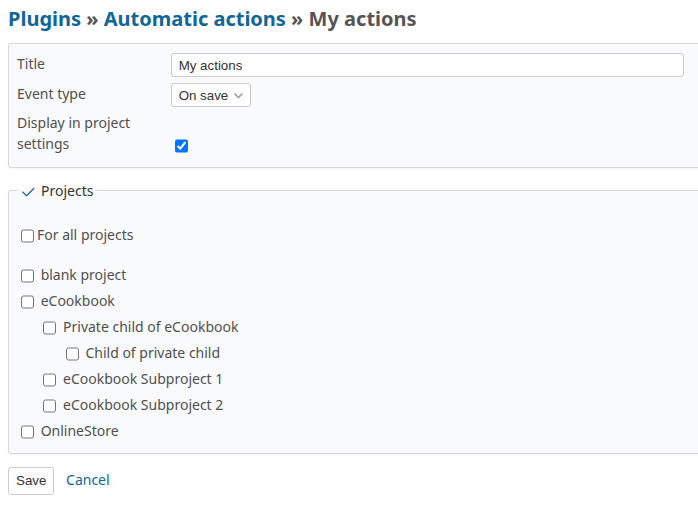
When creating, specify the name, execution method, and display in project settings. Actions can be executed in two different ways:
- On save - actions will be executed instantly when creating or editing an issue.
- Scheduled (cron) - rules will be executed periodically according to a cron schedule.
Editing actions
After creating an action, you can edit the rule, conditions, and actions.

Clicking on the rule name opens the editing window. Here you can specify in which projects the rule will be enabled.
Possible conditions
- Standard issue filters
- Custom issue filters
- Issue filters from other plugins
Possible actions
- Assignee
- Disable save
- Send email
- Status
- Tracker
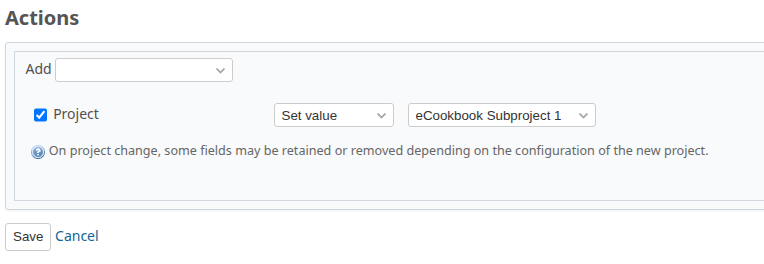
- Project
- Version
- Version of open subtasks
- Watchers
- Webhook (GET)
- Mattermost Webhook
- Telegram Webhook
- Checklist (if the redmine_advanced_checklists plugin is installed)
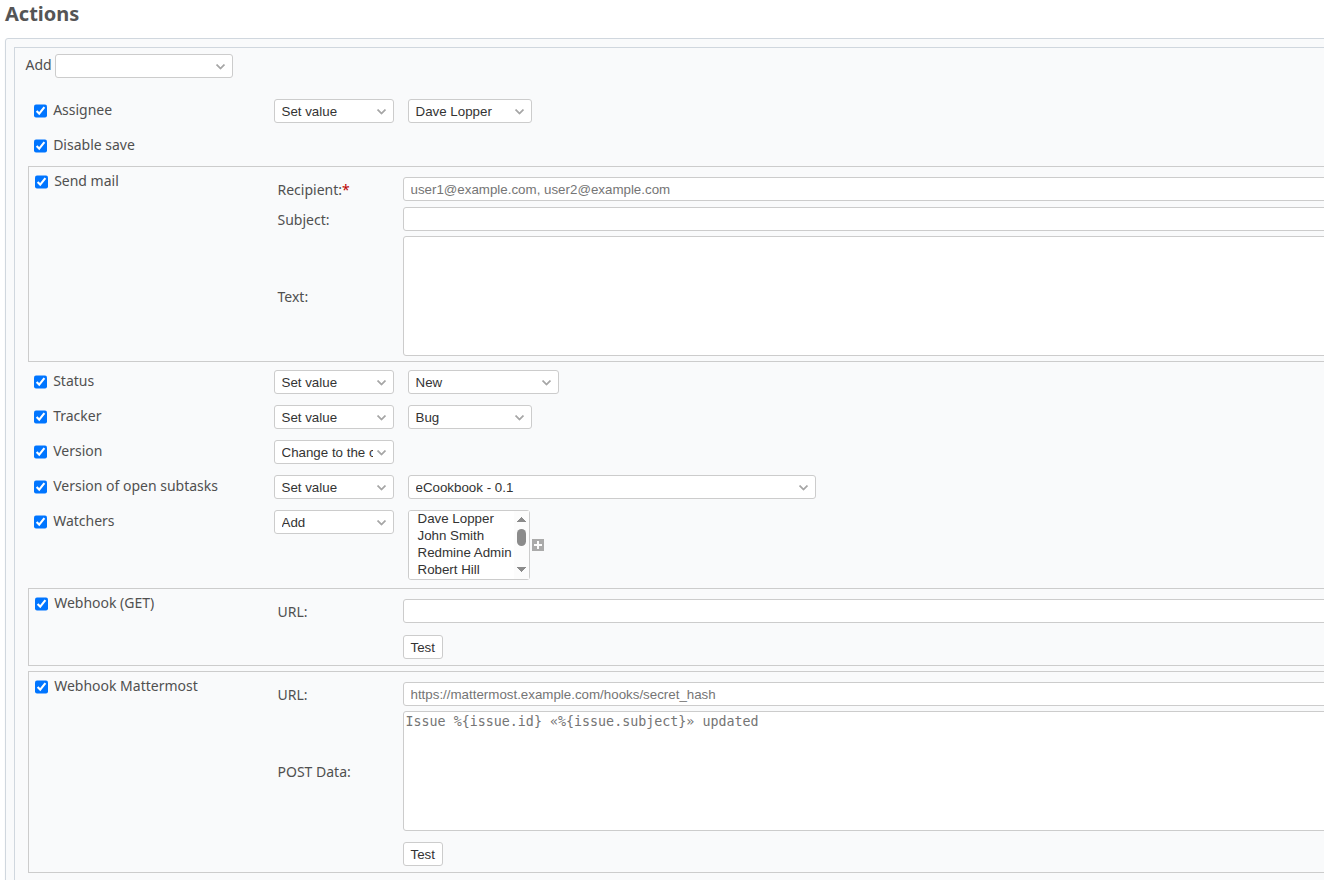
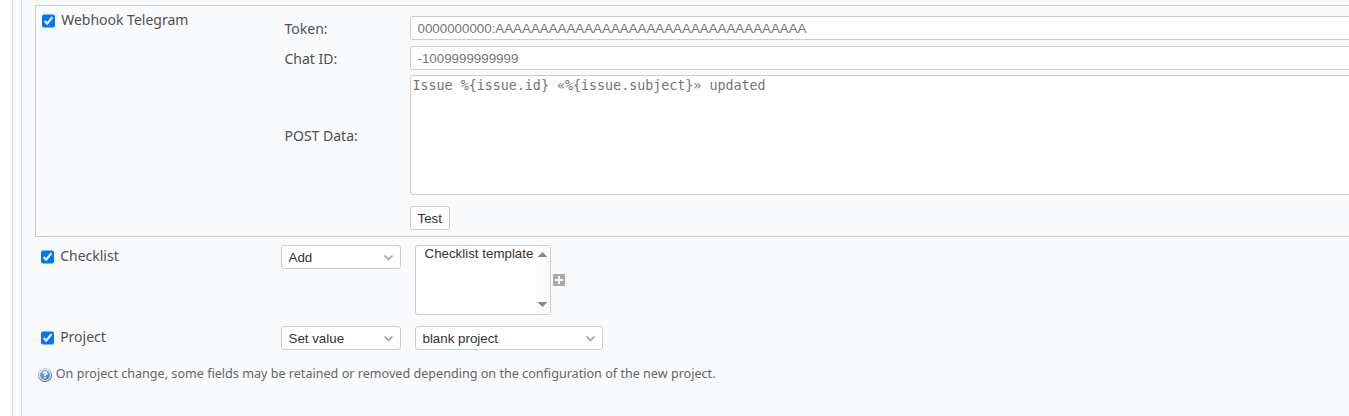
For the actions "Send email", "Webhook (GET)", "Mattermost Webhook", and "Telegram Webhook", action variables are available.

Usage
Enabling rules and actions
After creating rules and actions, you need to enable them individually in the project settings.
To do this, go to:
Project → Settings → Custom Rules, enable the rules needed in this project.

Project → Settings → Automatic Actions, enable the actions needed in this project.

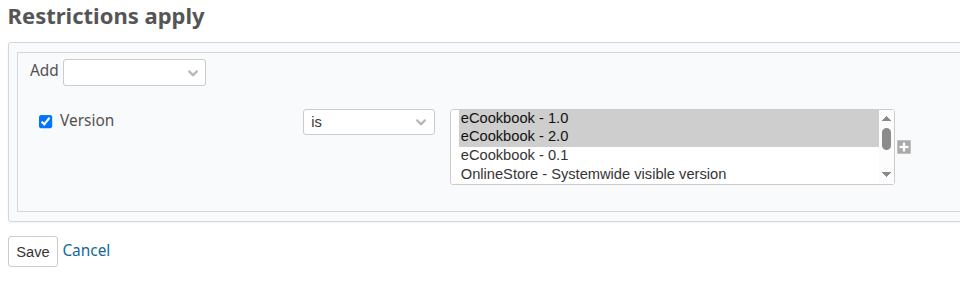
Custom Rules
Available restrictions that will be enforced when conditions are met:
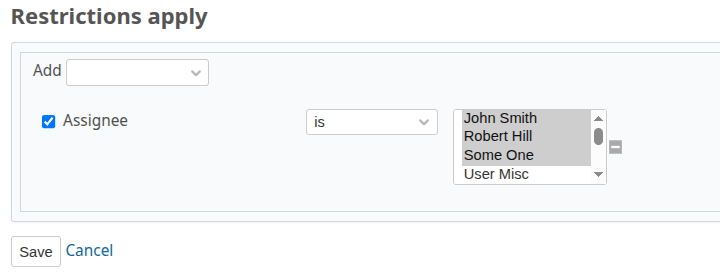
Assignee
The issue can only be assigned to selected users.
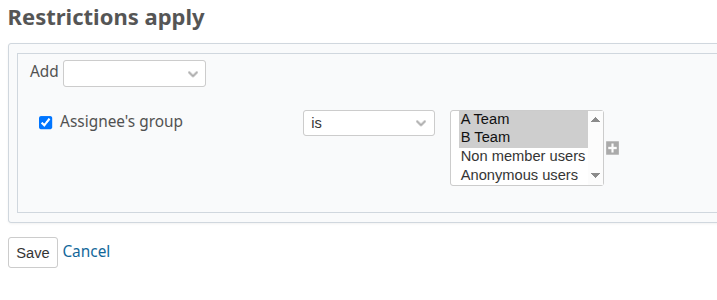
Assignee's group
The issue can only be assigned to users who belong to the selected groups.
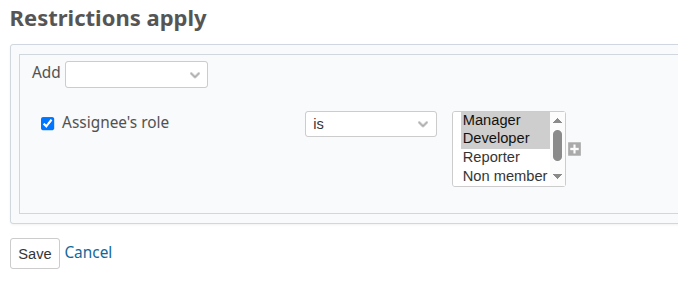
Assignee's role
The issue can only be assigned to users with the selected role for the project.
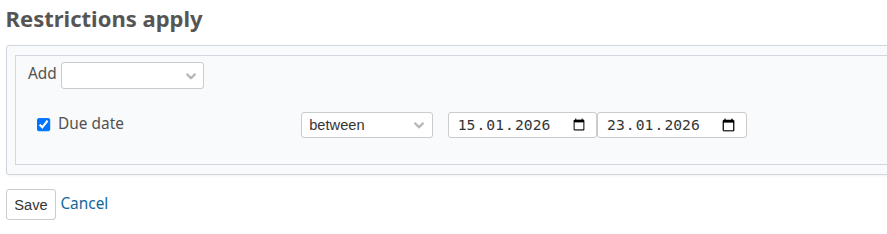
Due date
The due date for issues can only be set within a specified date range.
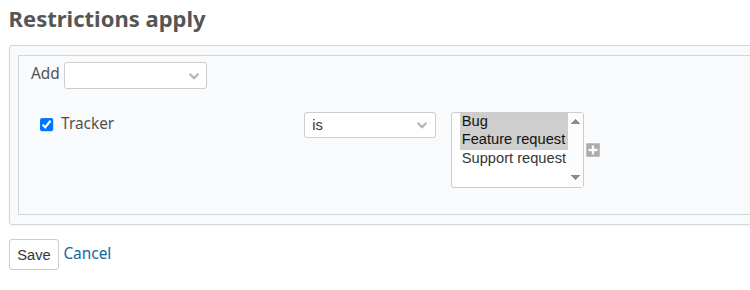
Tracker
Issues can only have the selected trackers.
Version
Issues can only have the selected versions.
Automatic Actions
Execution method "Scheduled"
Actions will be executed periodically according to the cron schedule.
For an automatic action to work correctly, you need to add a new command to the server's crontab that executes the command bundle exec rake advanced_workflow:run_actions
Example command:
*/5 * * * * cd /absolute/path/to/redmine && bundle exec rake advanced_workflow:run_actions >> /absolute/path/to/redmine/logs/cron_advanced_workflow.log
Add this command to cron as the user under which Redmine is running, replacing /absolute/path/to/redmine with the absolute path to your Redmine installation folder.
The cron command will run every 5 minutes */5 * * * *
All standard messages will be appended to the file .../logs/cron_advanced_workflow.log
Available actions that will be performed when conditions are met:
Webhook (GET)
Sends a GET request to the specified URL. Used for integration with external systems, for example, for synchronization with Jira.
Supports all issue field variables.

Mattermost Webhook
Sends a message to a Mattermost channel.
- URL: Incoming webhook URL for Mattermost.
- POST data: The message to be sent.
Supports all issue field variables. 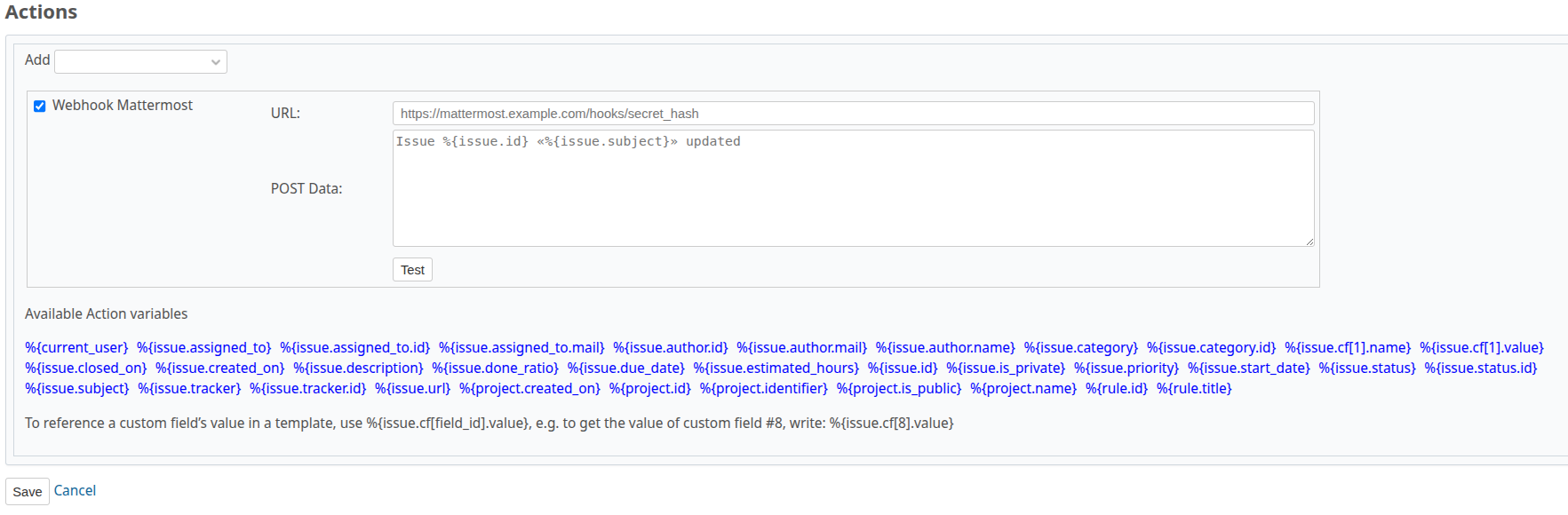
Telegram Webhook
Sends a message to a Telegram group chat using a bot.
- Token: Telegram bot token
- Chat ID: ID of the chat where this bot has been added
- POST data: The message to be sent
Supports all issue field variables. 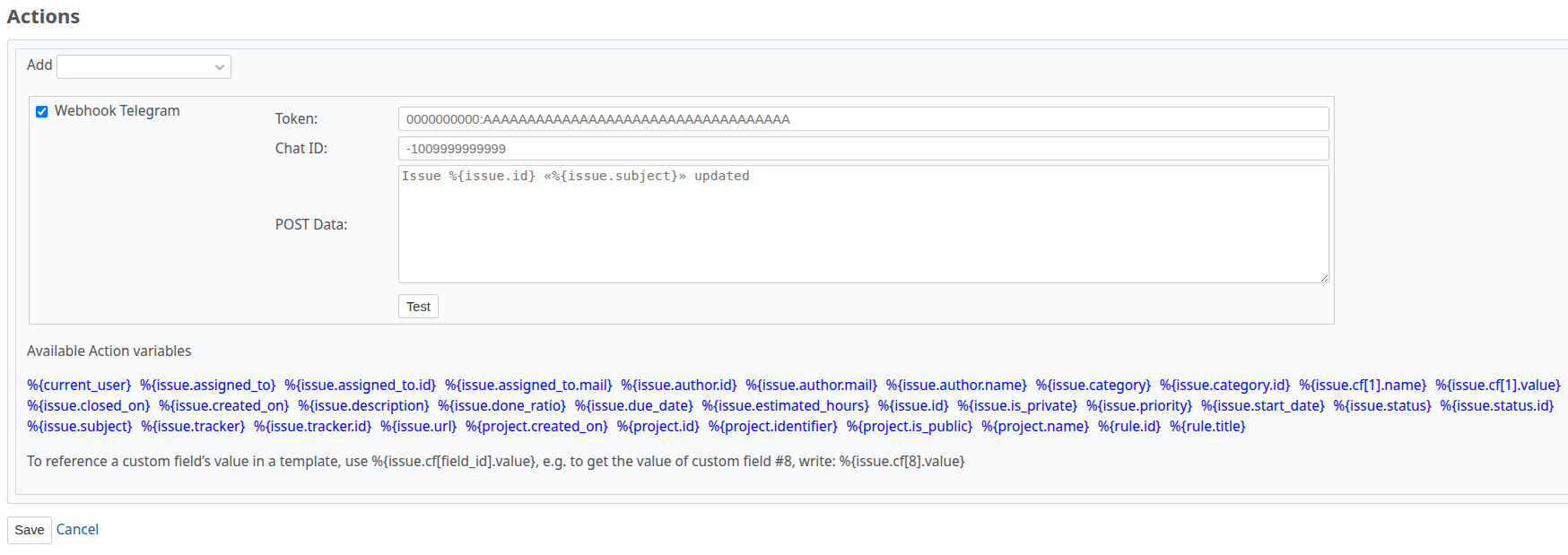
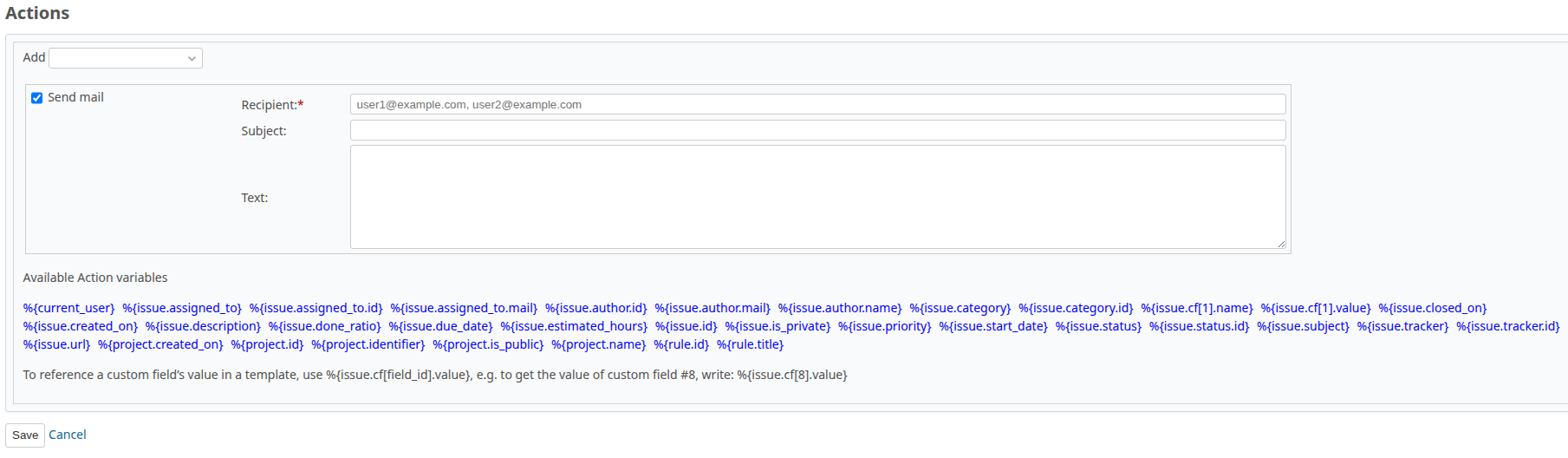
Send email
Sends an email to the specified email addresses. Addresses can be separated by commas , or ;.
Supports all issue field variables.
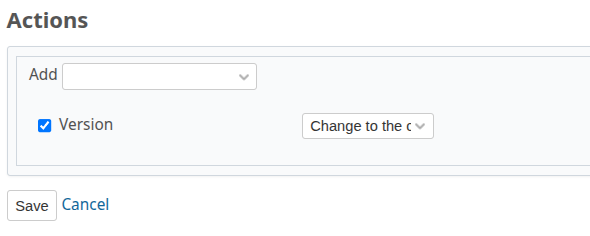
Version
Automatically changes the issue's version.
- Replace with the current issue's version - Replace the issue's version with the project's current (active) version.
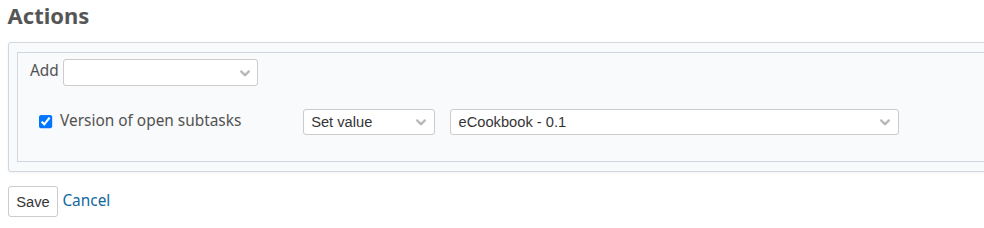
Version of open subtasks
- Change to - Changes the version of all open subtasks to the specified one.
- Set equal to issue's version - Changes the version of all open subtasks to the issue's version.
Disable save
Prevents the creation/editing of the issue. 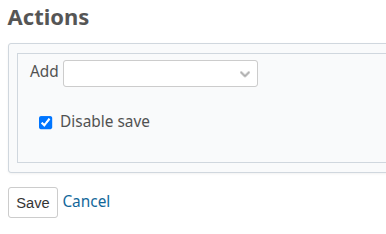
Watchers
Adds specified watchers to the issue. 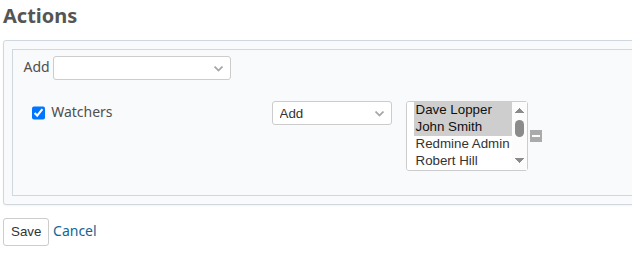
Status
Changes the issue status to the specified one. 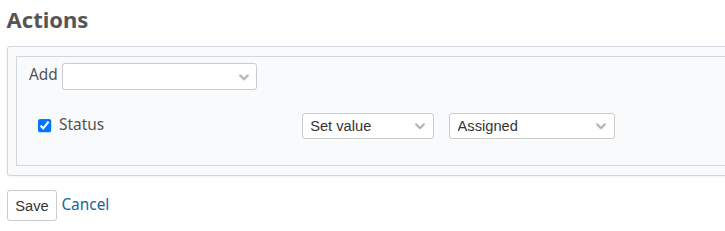
Tracker
Changes the issue tracker to the specified one. 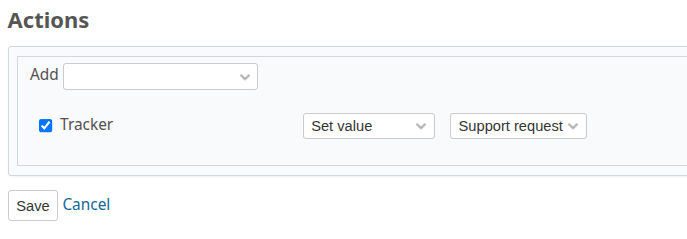
Checklist
Available if the redmine_advanced_checklists plugin is installed.
Automatically creates a checklist from templates when conditions are met.
Use pre-prepared templates. 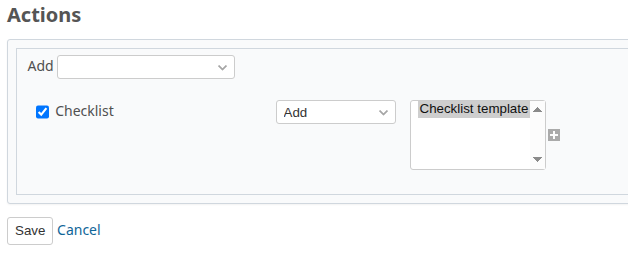
Project
Changes the issue's project to the specified one.